

 0
0 However, it becomes normal until there is something else that one needs to be concerned about since one could end up having a privacy issue as a result of some forgotten note within the document or an unintended version of the same. It is therefore important for one to check on the content of the PDF document before making it available on his or her website.
Eliminate Anything Unnecessary for Transport with the Document
Consider first the content that is simply unnecessary for your site visitors or portal users to see. There may be outdated comments, internal notes, client information, identifying information, preliminary figures, and other information that lives past the completion stage of your main document. The most thorough form of review considers what the audience requires and eliminates everything else.
Specifically look out for:
- Personal information in the form of addresses, phone numbers, IDs, and signatures that are not needed
- Internal comments, notes, change tracking, or instructions resulting from the review process
- Unnecessary pages, appendices, or other sections from a different version of the document.
Any information classified as sensitive should receive even more rigorous treatment than general editing, particularly if it will go public via WordPress. Rather than covering sensitive information with shapes or coloring it differently, use true redaction techniques that make sure it is completely eliminated. Then create a fresh copy and try to see if the information can still be selected or copied through any additional layers.
Fix the Content the Reader Is Going to Take Action On
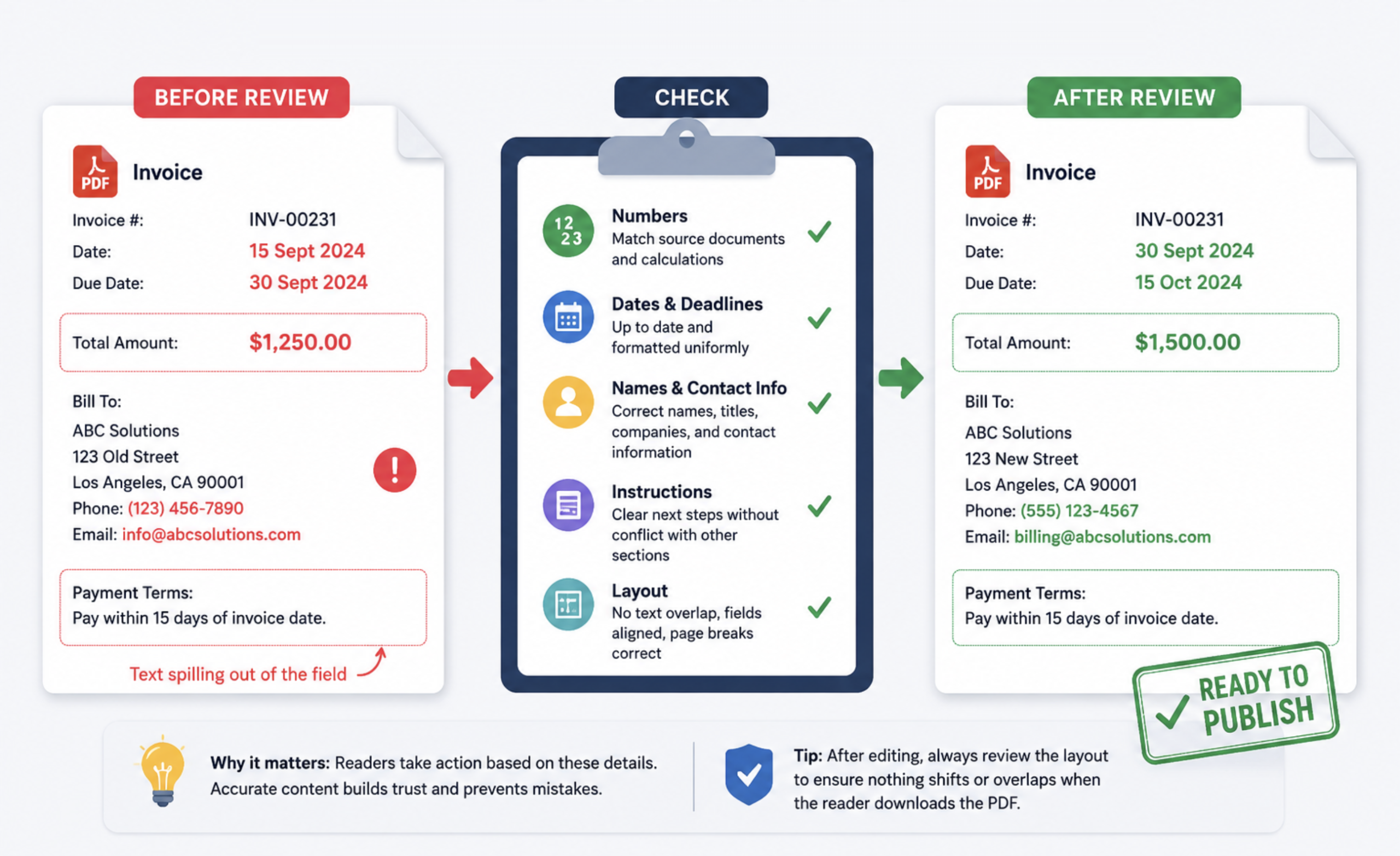
With the extraneous content removed, check the facts that prompt reader actions on your site. Figures, dates, totals, deadlines, addresses, reference numbers, payment terms, and contact information need to be correct as per your latest WordPress content or record keeping.
An effective content audit will ensure that:
- Numbers correspond with the source documents and calculations
- Dates and deadlines are up to date and formatted uniformly
- Names, titles, company names, and contact information are correct
- Instructions specify the next step without conflict with any other section.
This is also where you will have to check if the editing process has caused any layout issues. Editing a short sentence with a lengthy one can cause a line to spill into a field, overlay other content, or shift page breaks when the reader downloads the document. For minor visual updates, learning how to white out text in a PDF can help replace outdated wording without rebuilding the entire page, but whiteout should not be confused with secure redaction when handling sensitive information.
PDF Review As A Working Document
Verify Fields, Links, and Signatures
While a document that is embedded or referenced on WordPress may be perfect to read, it does not mean that it will work well if you try to work with it. The fillable fields must allow for the right information to go in and the link must lead to the right location.
For teams that need to make these adjustments before publishing, a guide to editing PDFs can help explain how text, images, fields, and other page elements can be corrected without returning to the original source file. This should not be an end in itself but rather a means to enable your site visitors to accomplish the desired task effortlessly.
Check Pages Ordering and Visual Consistency
Then, review the PDF from the beginning to the end before uploading it to WordPress. Confirm that pages are in proper order, that headers correspond to the right version of the document, images are not blurred, and no blank or duplicate pages appear as a result of merging or conversion.
It is necessary to check also repeating visual elements like page numbers, headers and footers, form labels, etc. Even slight differences in appearance may confuse users about the document version.
Re-check Privacy Before You Publish
Another privacy check needs to be conducted after you edit your document since last-minute changes may re-insert information which has been removed before. Conduct a search for any private names and numbers, examine any attachment and see if there is any other information hidden within the file which is not visible in the page view mode.
The Information Commissioner’s Office of the United Kingdom provided guidance in 2025 regarding the safe publication of documents in the public domain. It recommended conducting a check for any hidden information and then removing it if necessary. This principle applies much more widely than just the publication in the public domain since information is frequently exposed by mistake.
Check the Sharing Setup as Carefully as the File
The document might be complete while the delivery mechanism in WordPress is not. Verify the recipient, the filename, the access level, and the version before publishing. When sharing the document using a download link, a WooCommerce digital product, or cloud storage plugin, confirm if the document can be viewed, edited, downloaded, or forwarded to others and select the necessary access only.
Confirm three other things prior to the release:
- The filename represents the right document and version
- Access is granted to the right recipients or user role only
- The saved PDF opens properly outside the editing program.
Finally, ensure to open the exact file or download link which your website visitors will see and not the preview from the editor. This final verification ensures that there is no issue with the version, missing page, permission problem, or unsaved changes.




 Email Subscription Request


Add your first comment to this post