

 0
0 Let’s say a visitor from Argentina lands on your site at 2 AM. She loves your product. But there is one problem. She cannot read a word of it. So ten seconds later, she is gone.
That story plays out on English-only sites every single day. Only about 27% of internet users speak English. Whatever the exact number, the point stands. Most of the web does not read English, and those people have wallets too.
So how do you talk to them without hiring a small army of translators? One popular answer is GTranslate. This tool promises to put your WordPress site in many languages in minutes.
Sounds great on paper. But does it hold up when you kick the tires? That is what this review will answer. We installed the free plugin, tested every setting, and checked the pricing down to the last dollar.
Ready? Let’s get into it.
Quick Navigation
What Is GTranslate and How Does It Work?
GTranslate is an auto translation service that has been around since 2008. Its WordPress plugin links your site to Google’s engine and converts your content on the fly.
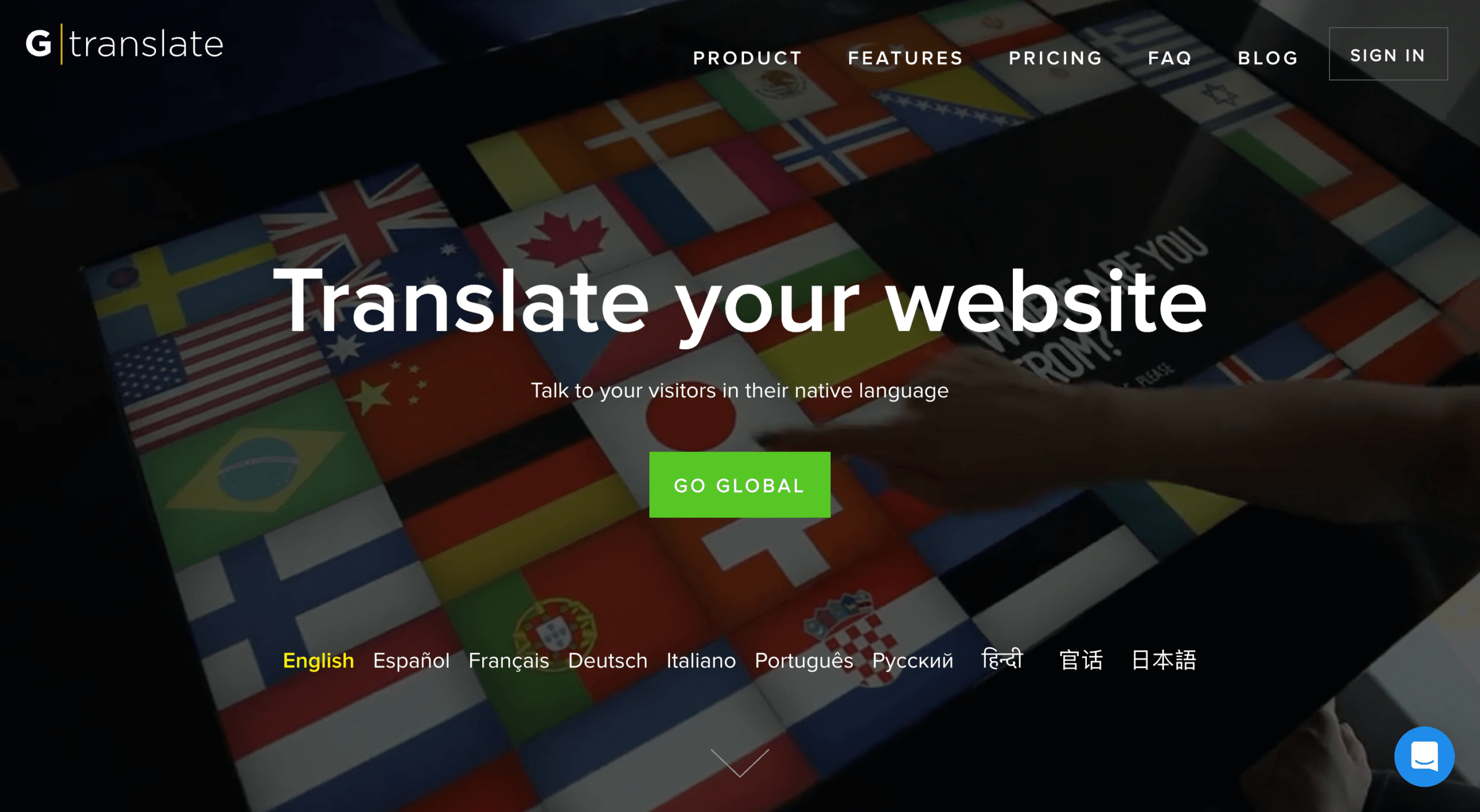
Here is the clever part. You never create separate posts or pages for each language. Instead, GTranslate reads your page, translates it, and shows the result to your visitor. And all of this happens in seconds.
Unlike most WordPress translation plugins, GTranslate is not really a WordPress tool at heart. It is a cloud service with a WordPress plugin attached. The same service also works on Shopify, Joomla, Drupal, and plain HTML sites. Why does that matter? Because the heavy lifting happens on GTranslate’s servers, not yours. Your site stays light.
The service works in two very different modes. Let’s look at both.
Understand the free mode first
The free version works like a smart pair of glasses for your visitors. Someone clicks a flag, and the text on screen changes to their language. Simple as that.
The catch? Nothing on your site really changes. Your URLs stay the same. Also, the translations are never stored anywhere. As a result, Google never sees your Spanish or French pages. They exist only in your visitor’s browser.
To GTranslate’s credit, the company does not hide this. In fact, its own FAQ says the free version gives no SEO boost. We checked the plugin’s code and can confirm it. The free mode changes nothing on the server. Such honesty is rare in a market full of puffed-up promises.
Unlock SEO with the paid mode
The paid plans flip the whole model. Instead of translating in the browser, GTranslate builds a full translated mirror of your site on its cloud network. The company calls this a Translation Delivery Network, or TDN.
Each language gets its own real address. You can pick from three structures.
- Subdirectories, like example.com/es/
- Subdomains, like es.example.com
- Separate country domains, like example.es or example.de
Because these pages live at real URLs, search engines can find and index them. Plus, GTranslate now says AI answer engines can index them too. That is a smart bet on the future. After all, more and more people ask ChatGPT or Perplexity for product advice instead of Google. Real URLs give those tools something to cite in every language.
How popular is GTranslate? The numbers speak loudly. The plugin has passed 900,000 active installs on WordPress.org. It holds a 4.9 out of 5 rating from over 4,900 reviews there. The company reports 20,000+ paying customers. For a translation plugin, those are heavyweight numbers.
Why Translate Your WordPress Site at All?
Before we go deeper, let’s answer the bigger question. Is translation even worth your time? For many sites, yes. So here is when it pays off.
- You sell internationally. GTranslate cites a Common Sense Advisory study on its site. It found that 85% of online shoppers would only buy from a site that describes products in their own language.
- You want traffic from more countries. Every indexed translated page is a new door into your site. More doors, more visitors.
- You want to look credible abroad. A German visitor reading your site in German trusts you faster. It is that simple.
- You have legal rules to meet. Some fields and regions require content in more than one official language. Think government, transport, or health care.
On the other hand, if all your customers live in one city and speak one language, skip translation and spend your budget elsewhere. Know your audience first.
Explore GTranslate’s Main Features
Now for the fun part. What do you actually get? The four big areas are auto translation, the language selector, SEO tools, and what it works with. Let’s unpack each one.
Get automatic translation without lifting a finger
This is the engine room. GTranslate converts your posts, pages, menus, categories, tags, and widgets on its own. Themes and WordPress plugins get covered too. The tool reads whatever shows on the finished page, no matter which plugin made the text.
Quality differs by plan, though. The free version uses older phrase-based machine output. Paid plans use modern AI translation. How big is the gap? GTranslate publishes its own scores. The old method rates around 6 out of 10 for Spanish to English. New AI output hits 8.3, while human translators average 8.5.
Right-to-left languages like Arabic and Hebrew work out of the box. Need a human touch? GTranslate also sells human editing services at a quoted rate.
Customize the language selector your way
The language switcher is your visitor’s doorway, and GTranslate gives you 12 different looks for it. We counted them in the code. Float, dropdown with flags, plain dropdown, flags with dropdown, popup, popup with search, flags only, globe, flags with codes, flags with names, language names, and language codes.
Placement is just as easy to bend to your will. You get seven ways to place the selector.
- A floating selector in any of the four screen corners
- Inside any menu of your theme
- The [gtranslate] shortcode, which works anywhere
- The [gt-link] shortcode for single-language links in menus
- A classic widget for sidebars
- A wrapper CSS selector to place it inside any element you want
- A Gutenberg block
That last one deserves a moment. The block editor is where WordPress is heading. And GTranslate shipped native block support in its newest release. Clearly, the plugin keeps pace with the platform.
One more kind touch. Languages spoken in many countries can show other flags. Spanish can show a Mexican, Argentine, or Colombian flag. French can show the Quebec flag. English can show the US flag. Small detail, big win for greeting the right crowd.
Win international SEO with the paid tools
Here is where the paid plans earn their keep. Depending on your tier, you unlock the perks below.
- Real indexed URLs for every language
- URL translation, so example.com/about-us becomes example.es/sobre-nosotros
- Automatic hreflang tags, which tell Google which language version to show each searcher
- An inline editor to fix any translation right on the page
- Meta tags and schema.org data get translated for Yoast SEO users
- A dashboard with traffic stats for your translated pages
- A central cache that speeds up how fast pages load
The manual editor matters more than it sounds. Machine translation nails most lines but trips on the odd idiom or product term. With the editor, you fix those spots once, and the fix sticks.
Count on wide compatibility
GTranslate plays nicely with the big names. Elementor, Divi, and Gutenberg all work. So does WooCommerce, which is huge for store owners. Paid plans even translate your WooCommerce order emails. A buyer in Tokyo gets her receipt in Japanese.
The changelog also shows tests with every big caching plugin. That list includes WP Rocket, LiteSpeed Cache, and W3 Total Cache. Translation tools and caching tools have a long history of fighting each other, so this care is worth noting.
Find Out Who GTranslate Is Really For
No tool fits everyone, and GTranslate is honest about its target. The About page says it serves small and mid-size firms with tight budgets.
Based on our testing, it fits three groups best.
- Bloggers and content creators who want global readers without paying per word. GTranslate charges one flat monthly fee with no word cap. Weglot, by contrast, sets your plan by word count and language count, and its word allowance is a fixed total that does not refill. Publish more, and you climb tiers. On a wordy site, that gap adds up fast.
- WooCommerce store owners ready to sell across borders. Product pages, checkout, and emails all get covered.
- Freelancers and agencies who need to ship client sites in many languages, fast and at a set cost.
There is a fourth group worth naming. Government sites and other groups with strict security rules. GTranslate runs as a cloud proxy, so it installs no software on your server. Nothing new to patch, audit, or maintain. For teams with long security checklists, that is a true selling point.
That said, be fair about the flip side. A proxy means traffic to your translated pages travels through GTranslate’s network instead of yours alone. Some security teams love having no new code on the server. Others will want to review that data path first. Ask your team which camp it sits in before you commit.
Who should look elsewhere? Sites that need deep control over every translated word from day one. Tools like WPML or TranslatePress store the text in your own database and give translators full control. Of course, that power comes with more setup and upkeep. But some teams need it.
GTranslate Review: See How GTranslate Performs in WP Hive Tests
Features tell you what a plugin can do. Performance tells you whether you should trust it on a live website.
To verify GTranslate’s stability, we ran it through WP Hive’s automated benchmark. Every plugin goes through the same testing environment, making the results consistent and easy to compare.
WP Hive Verdict: GTranslate passed every automated benchmark we ran, showing excellent compatibility, a minimal resource footprint, and no technical issues during testing.
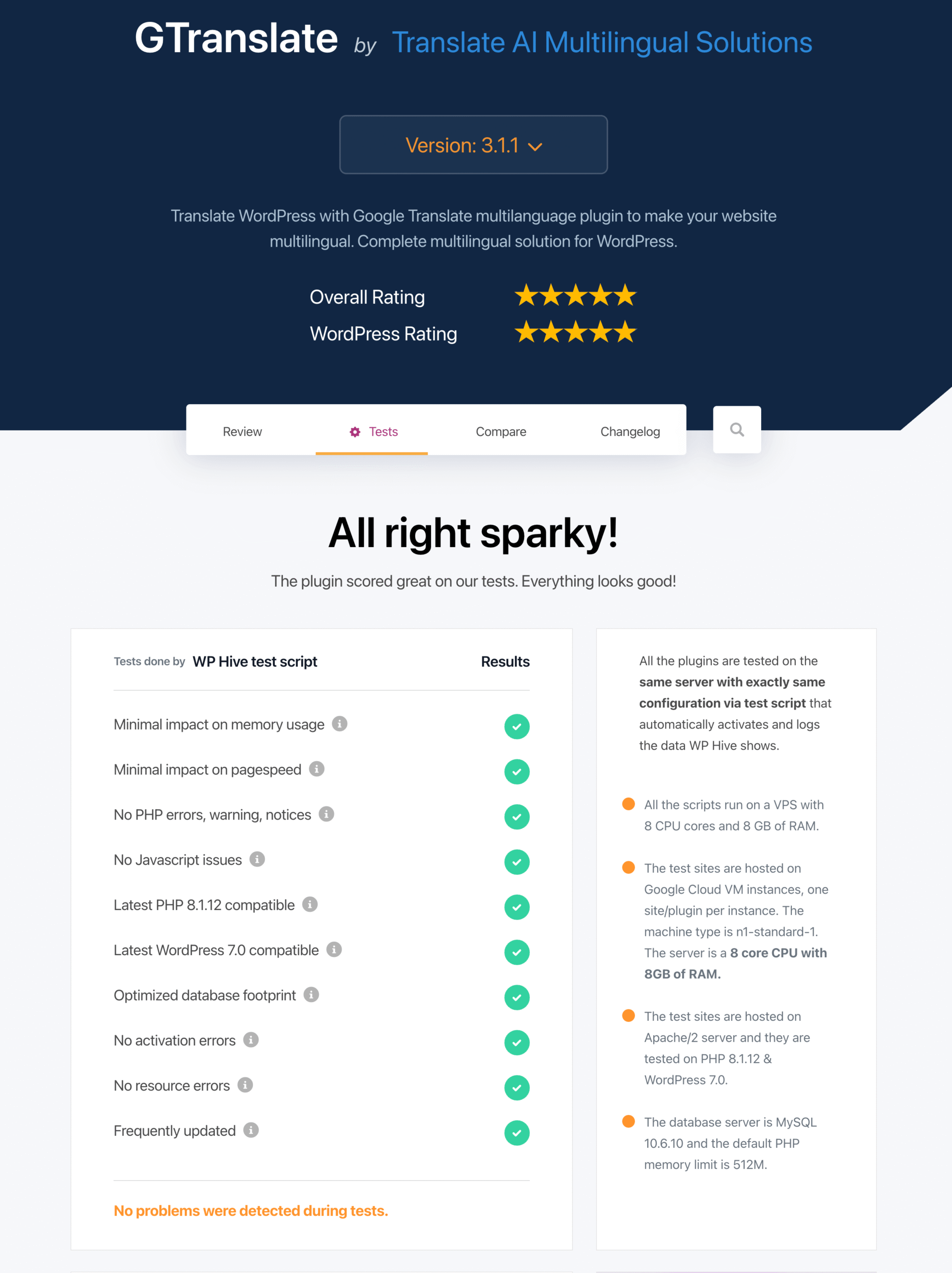
Our Benchmark Results: During testing, GTranslate passed every benchmark with no issues detected.
- ✅ Minimal impact on memory usage
- ✅ Minimal impact on page speed
- ✅ No PHP errors, warnings, or notices
- ✅ No JavaScript issues
- ✅ Optimized database footprint
- ✅ No activation or resource errors
- ✅ Compatible with the latest WordPress and PHP versions
- ✅ Frequently maintained and updated
The benchmark confirms what we noticed during testing. GTranslate is a lightweight plugin that doesn’t place unnecessary strain on your WordPress installation.
We also found no PHP errors, JavaScript issues, or activation problems during installation. These checks matter because even a small compatibility issue can create conflicts with your theme or other plugins.
Another positive sign is the optimized database footprint. GTranslate doesn’t clutter your database with unnecessary data, making it a good choice for websites that prioritize long-term performance and maintenance.
Overall, the benchmark shows that GTranslate is well-built from a technical perspective. If performance is one of your concerns, our tests suggest you can install it with confidence.
How We Tested GTranslate
Every plugin on WP Hive is tested in an identical cloud environment using our automated testing script. We measure memory usage, page speed impact, PHP and JavaScript errors, database footprint, activation stability, and compatibility with the latest WordPress and PHP versions. This ensures every plugin is evaluated under the same conditions, making comparisons fair and reliable.
Install and Configure GTranslate on WordPress
Time to get our hands dirty. Here is the full setup, step by step.
Install the plugin in two minutes
First, head to your WordPress dashboard and open Plugins, then Add Plugin. Next, type “GTranslate” in the search bar. Then click Install Now and Activate. Done.
The plugin needs WordPress 6.0.1 or newer and is tested up to WordPress 7.0. Almost any site running today qualifies.
Configure the settings page
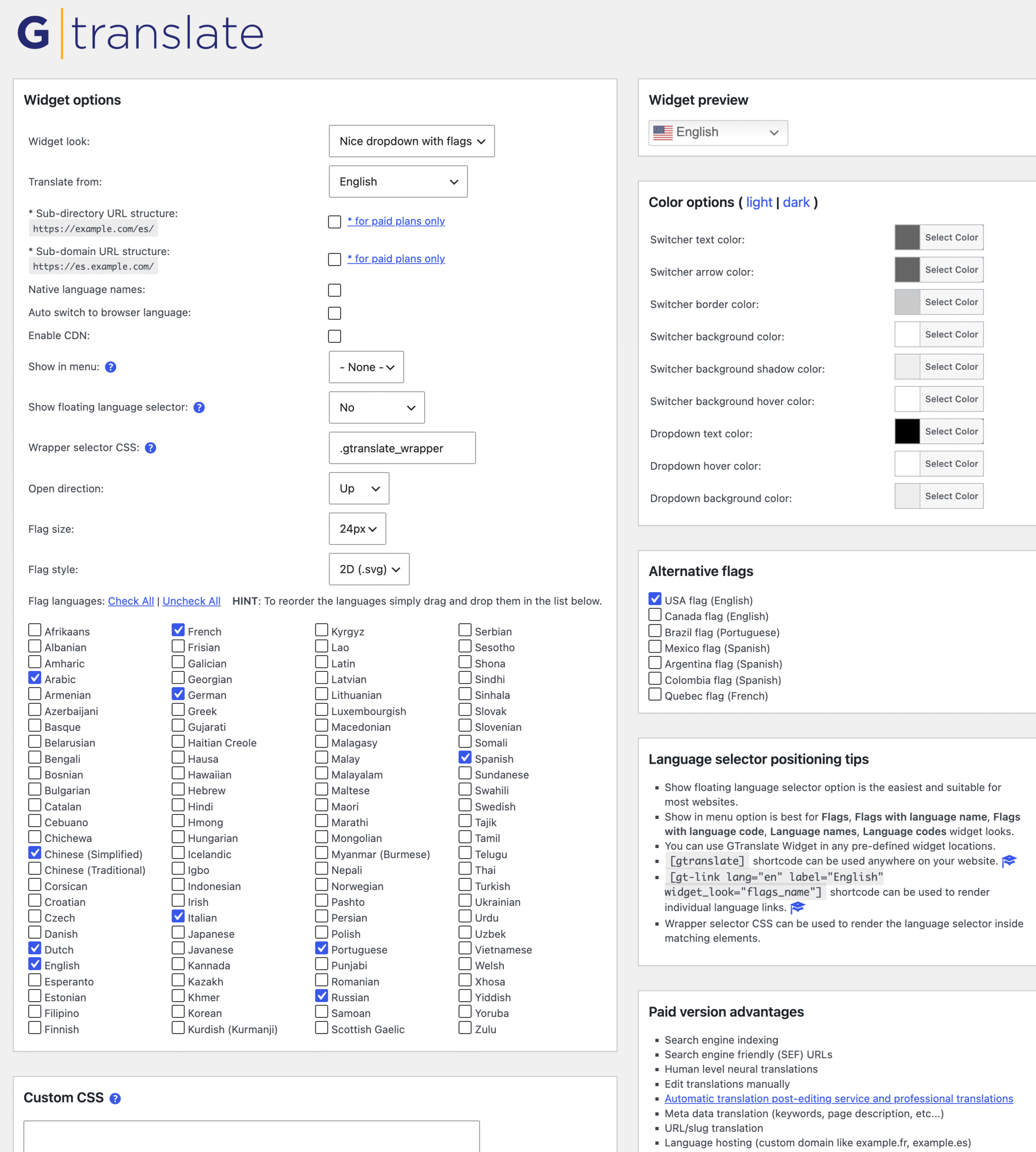
Open Settings, then GTranslate. Everything lives on one page. Better yet, a live Widget Preview box in the corner shows each change as you make it. No guessing, no saving and refreshing.
Here are the settings you will actually touch.
- Widget look. Pick from the 12 selector styles. Some styles unlock extra options like colors, flag size, or globe size.
- Translate from. Your site’s original language. The plugin picks it up from your WordPress locale on its own.
- Native language names. Shows “Deutsch” instead of “German”. Turn this on. Your German visitors think in Deutsch, not German.
- Detect browser language. Greets each visitor in their browser’s language on its own. Handy, though some folks like to choose.
- Enable CDN. Loads the selector files from a speed network so they show up faster.
- Show floating language selector. Drops the switcher in your chosen screen corner. GTranslate calls this the easiest option, and we agree.
- Flag style and size. Crisp 2D SVG flags or classic 3D PNG flags, in 16, 24, 32, or 48 pixels.
- Flag languages. Check the languages you want, then drag and drop to reorder them.
Power users get a Custom CSS box too. Meanwhile, the sub-directory and sub-domain boxes sit near the top. They wait for a paid plan to switch them on.
Place the language selector where it counts
For most sites, the floating selector wins. Just pick a corner, save, and it pops up right away.
Prefer something custom? Paste the [gtranslate] shortcode into any post, page, or widget. Theme builders can drop this line into a template file.
<?php echo do_shortcode('[gtranslate]'); ?>
Want single language links in your menu? Create a Custom Link menu item and place this in its description field.
[gt-link lang="es" label="Spanish" widget_look="flags_name"]
And if you live in the block editor, just search for the GTranslate block and drop it in. Seven placement methods mean there is no layout the selector cannot reach.
Edit translations with a paid plan
Machine translation gets you 80% of the way. Meanwhile, the last 20% is where paid plans shine.
After you subscribe, a setup wizard walks you through the first steps. You pick your platform and your URL structure. Then editing becomes almost playful. Visit any translated page and add this to the end of the URL.
?language_edit=1

The dashboard adds finer controls too. You can skip pages or phrases from being translated. You can search all translated text from one screen. And you can watch traffic stats per language in the Analytics menu.
Small pen icons appear next to every editable text. Click a pen, fix the wording, hit Save. That’s the whole workflow. Plans with URL translation let you edit slugs the same way.
One limit on the free plan worth knowing. The only way to keep text from being translated is to wrap it in a notranslate span. Skip Phrases, CSS selector skips, and Skip Pages all need a paid plan.
Test the Support and Documentation
Good support separates tools you put up with from tools you praise. So we looked closely here.
GTranslate runs live chat from Monday to Friday, 2 AM to 6 PM UTC-4. Free users get answers as time permits, usually within a day. Paid users get priority. You can test the chat yourself at gtranslate.io before spending anything, which is a confident move on their part.
Here is the part that stands out. The plugin’s author answers questions himself on the WordPress.org support forum. Not a support rep reading from a script. The person who wrote the code. Browse the forum, and you will find him replying to threads about flag sizes, caching clashes, and page speed scores. When the developer picks up your ticket, root causes get found instead of papered over.
The recent reviews back this up. Users on WordPress.org repeatedly name support staff like Ann and Vahan and praise how fast and smooth their issues got resolved. A 4.9 rating across nearly 5,000 reviews does not happen with slow support.
Beyond the humans, you get help docs at GTranslate support. There is a blog and a video library too. The docs cover the common jobs, like how to turn on URL translation or skip some text.
Check GTranslate’s Pricing for 2026
Let’s talk money. GTranslate offers a free plan plus four paid tiers. Note that each paid plan covers one website. Below are the current prices. We checked them on gtranslate.io in August 2026.
- Free. $0. The language selector, machine translation, all languages, and no word or pageview caps. No indexing, no editing.
- Custom. $12 per month. The build-your-own plan. Start bilingual or with all languages, then toggle features like URL translation on or off. You pay only for what you switch on, so the price moves with your choices.
- Startup. $25 per month. All languages, AI translation, search indexing, and editing.
- Business. $35 per month. Everything in Startup plus URL translation. This is the sweet spot if you are serious about SEO.
- Enterprise. $50 per month. Everything, plus language hosting on separate domains like example.fr.
Every paid plan comes with AI translation, no word limits, no pageview limits, search indexing, and editing. Pay yearly, and you skip two months. The Business plan drops to $350 per year instead of $420.
The plugin settings also list a Works in China feature for paid users. That matters if you target Chinese visitors, since Google services are blocked there.
New customers get a 15-day free trial and can cancel during it at no charge. Separately, GTranslate lists a 30-day refund window after purchase. Check the returns policy for how the two work together, since the terms do not spell that out.
How does this stack up against rivals? The pricing model is the real difference. Weglot’s popular plans cap your word count, and busy sites outgrow those caps quickly. WPML charges per year with tiered site limits. GTranslate charges one flat fee per site with zero word limits. For content-heavy sites, flat pricing means no surprise bills when you publish more. Your costs stay predictable, which finance folks love.
One heads up. Prices have gone up over the years. So take any numbers you read in older reviews with a grain of salt. Always check the official pricing page before you decide.
Compare GTranslate With Weglot, WPML, and TranslatePress
Price tags alone tell you little. What really matters is how each tool charges you as your site grows. So let’s line up the four big names.
GTranslate charges one flat fee per site per month. No word caps, no pageview caps. Your bill stays the same whether you publish ten pages or ten thousand. Translations live on GTranslate’s cloud.
Weglot sets your plan by two numbers. How many words you translate, and how many languages you use. Here is the catch that trips people up. That word allowance is a fixed total, not a monthly refill. Keep publishing and you climb tiers. For a busy blog, costs can creep up fast.
WPML sells yearly licenses with site limits. The Blog tier covers one site, the CMS tier covers three, and the Agency tier covers as many as you like. Auto translation runs on a credit system, so machine translation costs extra once your free credits run dry. In exchange, you get deep control and everything stays in your own database.
TranslatePress also keeps translations in your database and edits them through a live front-end editor. Many people love that workflow. It gives you full ownership of every word, though you take on the storage and upkeep.
So which model suits you? Think about it this way. GTranslate trades control for simplicity and steady costs. WPML and TranslatePress trade simplicity for control. Weglot sits closer to GTranslate in ease, but its meter runs while GTranslate’s does not.
One honest caveat. Rival pricing shifts often, and different sources list different numbers. Check each vendor’s own pricing page before you compare dollars.
Get Answers to Your Remaining Questions About GTranslate
Does GTranslate slow down a website?
No. The free selector uses light, plain JavaScript. Its files load lazily and need no extras. The paid version runs on GTranslate’s cloud, so the heavy work never touches your server. Your hosting does the same job it always did.
How many languages does GTranslate support?
The official list covers 103 languages, from Spanish and Chinese to Welsh and Zulu. GTranslate says this reaches over 99% of internet users. Scripts that run left to right and right to left both work.
Do I need a Google Translate API key?
No. GTranslate covers the auto translation costs on every plan, even the free one. Rivals often make you bring your own paid API key. This saves real money.
Can I try the paid features before paying?
Yes. New customers get a 15-day free trial. You can cancel any time during it. After that, a 30-day refund policy has your back.
Does GTranslate work with WooCommerce?
Yes. Products, checkout pages, and schema data all get translated. Paid plans translate your WooCommerce emails too.
Will my translated pages appear on Google?
Only with a paid plan. Paid tiers create real URLs per language, which search engines and AI answer engines can index. The free version translates in the browser only, so nothing gets indexed.
Weigh the Pros and Cons
Now, time for the honest scorecard.
Count the advantages
- Setup speed. The free widget goes live in minutes, with no code. Paid plans take longer, since you must point DNS records at GTranslate and wait for them to spread.
- Unlimited words at a flat price. No word counters, no metered billing, no bill shock. Rare in this market.
- Nothing installed on your server. The cloud proxy model keeps your stack clean, secure, and fast. A real plus for government and security-focused sites.
- 103 languages, plus other flag choices for local crowds.
- Works with the big names. WooCommerce, Elementor, Divi, Gutenberg, Yoast, and the top caching plugins all play nice.
- Standout support. Live chat, fast replies, and the guy who built it answers forum threads.
- Updates happen in the cloud. The service updates on GTranslate’s side. You never babysit it.
- Future-ready indexing. GTranslate says real URLs make your pages visible to AI answer engines, not just Google. That claim is new and untested by us, but the logic is sound.
Face the limitations
- Machine output is not flawless. Technical, legal, or creative text can come out clunky. Plan a human check on your most important pages.
- The free version gives zero SEO value. No indexed URLs, no stored translations, no editing. It is a visitor convenience, not a growth tool.
- Reliance on outside translation engines. The free tier runs on Google Translate. Paid tiers now say AI translation without naming the engine, and GTranslate has since launched its own API called TranslateX. Either way, you depend on someone else’s model, and model changes can shift your output.
- One site per paid plan. Agencies with many client sites pay per site, which stacks up.
- Editing lives on GTranslate’s dashboard, not inside WordPress. Rivals like TranslatePress keep it all in your own database, and some people like that control more.
- Prices rose recently. Still competitive, but the entry cost is higher than it once was.
Read Our Final Verdict on GTranslate
So, should you use GTranslate? We tested the plugin, read the code, and checked the numbers. Here is our honest take.
GTranslate does what it says on the tin. No other tool we tested turns a WordPress site into many languages this fast. The flat price with no word caps means your bill never punishes your growth. And the support is a cut above, because the developer himself shows up to help.
Our advice splits by goal. If you just want visitors to read your site in their language, the free version does the job today, at zero cost. But if you want global traffic, sales, and rankings, go straight to a paid plan. For most sites, the Business plan at $35 per month hits the sweet spot, since it adds URL translation for stronger SEO.
Whatever plan you pick, have a human check your money pages. Your homepage, pricing page, and checkout deserve a native speaker’s eye. GTranslate’s inline editor makes those fixes painless.
The bigger picture seals it for us. Search is spreading across languages and AI tools. Sites with indexed pages in 100+ languages will meet buyers wherever they look.
Ready to see it for yourself? Install the free plugin, click a flag, and watch your site switch languages before your coffee cools. After that, the 15-day trial covers the rest.




 Email Subscription Request


Add your first comment to this post