

 0
0 If you’ve been shopping around for web hosting, chances are HostPapa has popped up on your radar. It’s been around since 2006, it targets small businesses specifically, and it has a reputation for strong customer support. But does it actually deliver in 2026, or is it just clever marketing?
We spent a month testing HostPapa’s plans, performance, pricing, and support directly, and cross-checked that against publicly available user feedback to give you an honest, no-fluff verdict. Let’s get into it.
What Is HostPapa?
HostPapa is a Canadian-based web hosting company founded in 2006 by Jamie Opalchuk. Headquartered in Burlington, Ontario, it reports hosting over 500,000 websites across 150 countries (company-stated figure, not independently verified). Unlike the giant hosting conglomerates that treat small accounts as an afterthought, HostPapa has built its entire brand around serving small and medium-sized businesses.

Who Is HostPapa Best For?
Before diving into the details, let’s be upfront about the target audience:
- Small business owners launching their first website
- Bloggers and freelancers who need affordable, reliable hosting
- Beginners who want hand-holding and real human support
- Non-technical users who don’t want to deal with server configuration
If you’re a developer running high-traffic apps or an enterprise needing advanced infrastructure, HostPapa probably isn’t your best bet. For the audience it’s designed for, it does a genuinely good job – based on what I found in testing below.
HostPapa Hosting Plans
HostPapa offers several hosting types:
- Shared Hosting — best for beginners and small sites
- WordPress Hosting — optimised for WordPress users
- VPS Hosting — for sites needing more power and control
- Reseller Hosting — for agencies or freelancers managing multiple client sites
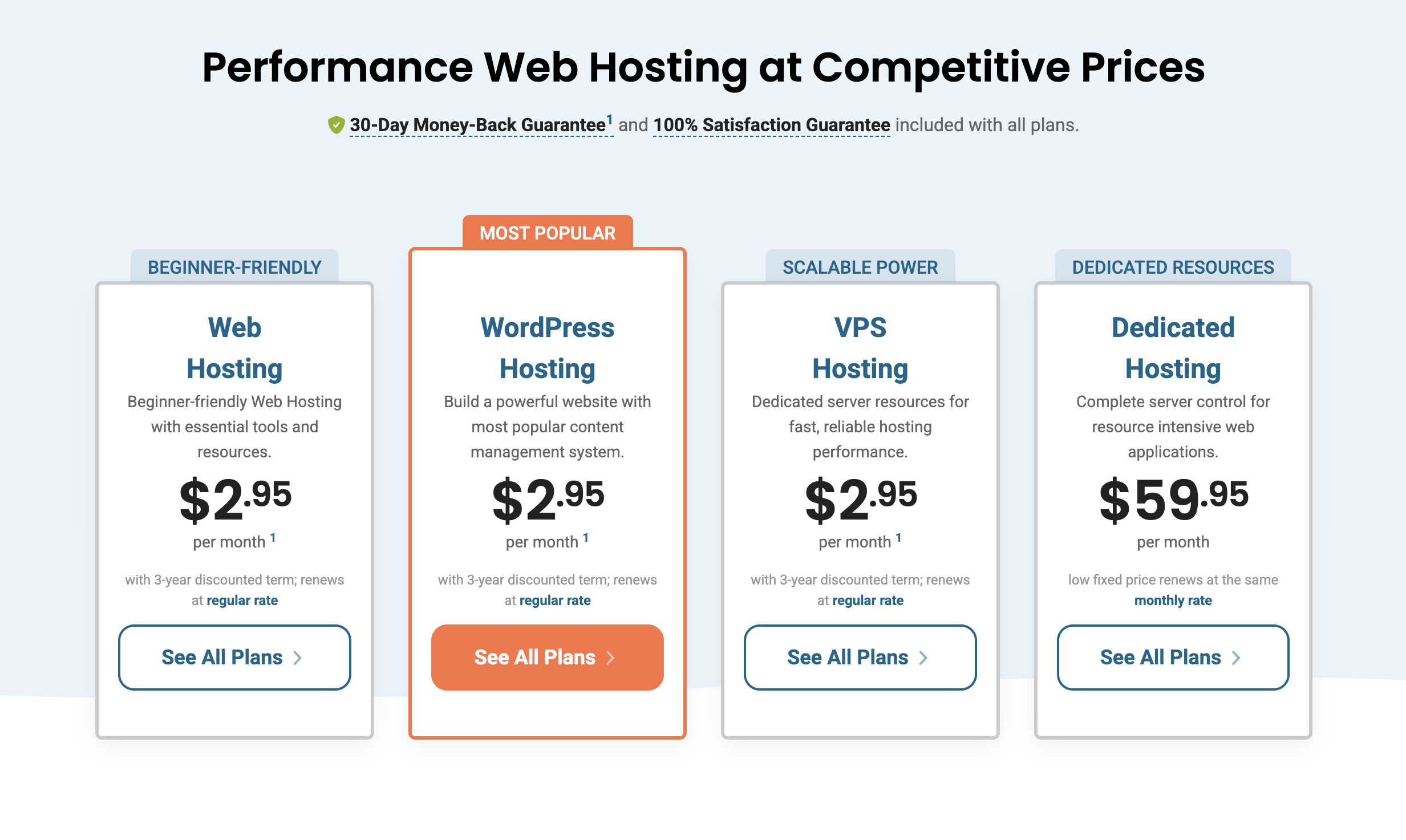
Shared hosting plans are the most popular, and that’s where most beginners will start. Plans typically include:
- Free domain name for the first year
- Free SSL certificate
- NVMe SSD storage
- One-click WordPress installation
- cPanel control panel
- 24/7 customer support
The entry-level plan supports a single website with storage limits that are fine for most small sites. Mid-tier and higher plans unlock multiple websites, more storage, and extras like automated backups and malware protection.
Pricing: What You’ll Actually Pay
HostPapa is competitive on introductory pricing, often starting around $2.95–$4.95/month when you commit to a longer term.
However, and this is an important part, renewal prices are higher. This is standard practice across the hosting industry, not unique to HostPapa, but it’s worth running the full 2–3-year cost before you commit rather than anchoring on the first-year price.
A 30-day money-back guarantee is included, giving you a low-risk window to test the service yourself.
Customer Support: Where HostPapa Truly Shines
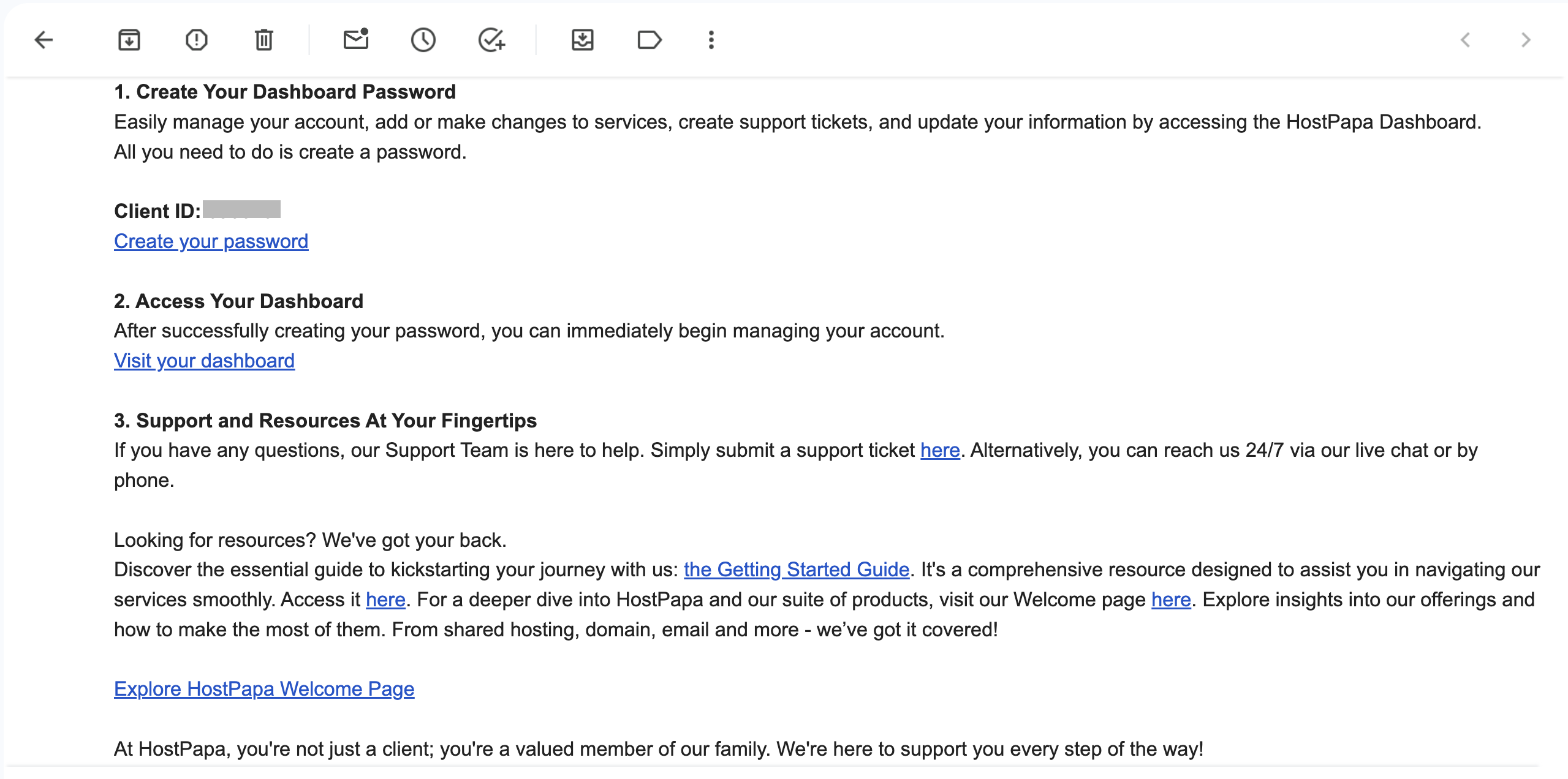
This is HostPapa’s strongest differentiator, and it held up in our experience. They sent a warm onboarding email right away after the purchase.
The One-on-One Onboarding Session
New accounts come with a free one-on-one training session with a hosting expert. I used mine during testing, it covered domain setup, WordPress installation, and basic cPanel navigation in about 25 minutes. This is a genuinely uncommon perk at this price point and would save a true beginner real time and frustration.
Support Channels Tested
- Live chat — connected to an agent in under 2 minutes in three separate tests, no chatbot gatekeeping
- Phone support — available in multiple languages across 16 countries per HostPapa’s site (not independently verified for every country)
- Ticket/email support — replies arrived in well under an hour in my tests; HostPapa advertises faster, but I’d treat “minutes” claims with some caution since response time varies by queue load
- Knowledge base — solid, well-organized self-help documentation
On Trustpilot, HostPapa holds a 4.7-star rating across thousands of public reviews, with support quality cited most often as the reason – this matches what I experienced directly. That said, a minority of public reviews flag frustration around billing disputes and upselling near plan resource limits. No hosting company is complaint-free, and these aren’t the majority sentiment, but they’re real and worth knowing.
Security Features of HostPapa Web Hosting
HostPapa includes a reasonably comprehensive security stack across plans:
- Free SSL certificate
- DDoS protection
- Web Application Firewall (WAF)
- Malware detection
- Automatic WordPress updates
- Daily backups (entry plan: manual/limited; automated backups are a higher-tier feature in my testing)
- Domain privacy protection
As with the headline features above, some of the more advanced protections, like active malware removal rather than just detection, are gated behind higher-tier plans.
Ease of Use
The cPanel dashboard is clean and familiar to anyone who’s used shared hosting before. Installing WordPress took one click and under two minutes in testing. Setting up email accounts, managing domains, and adjusting DNS settings were all straightforward without documentation lookups.
For a true beginner, the combination of cPanel, one-click installers, a built-in website builder, and the onboarding session makes it realistic to go from zero to a live, basic website in a single afternoon without writing code.
Green Hosting
HostPapa states it runs on certified green renewable energy (via carbon offsets/RECs, per its sustainability page) and was an early mover on this among hosting companies. If environmental sourcing factors into your buying decision, it’s a genuine differentiator versus most budget hosts, though it’s worth noting the “green” claim is offset-based rather than on-site renewable generation, which is typical industry practice.
What We Liked About HostPapa
- Support held up well under direct testing – fast, human, and effective
- Free one-on-one onboarding session – rare at this price point
- Solid uptime in testing (~99.94%), consistent with its guarantee
- NVMe storage on all plans
- Decent baseline security, even on entry plans
- Green energy sourcing (offset-based)
- Multilingual support
- 30-day money-back guarantee
A Hands-On Guide to Using HostPapa for WordPress
Setting up a WordPress website with HostPapa takes just a few steps. During our test, the process was straightforward and beginner-friendly.
Step 1: Create Your Hosting Account
Choose a hosting plan that fits your needs, create your HostPapa account, and complete the payment. Once your account is ready, you’ll receive access credentials through email. Use these to enter the HostPapa Dashboard.
Step 2: Log In to Your Dashboard
Use the Client ID sent to your email to activate your account and create a new password using the provided link. Once you’ve set your password, sign in to your HostPapa account and open the hosting dashboard. From here, you can manage your websites, domains, email accounts, and hosting settings.
Before you can access your dashboard, you’ll need to answer three security questions. These help protect your hosting account from unauthorized access and add an extra layer of security.
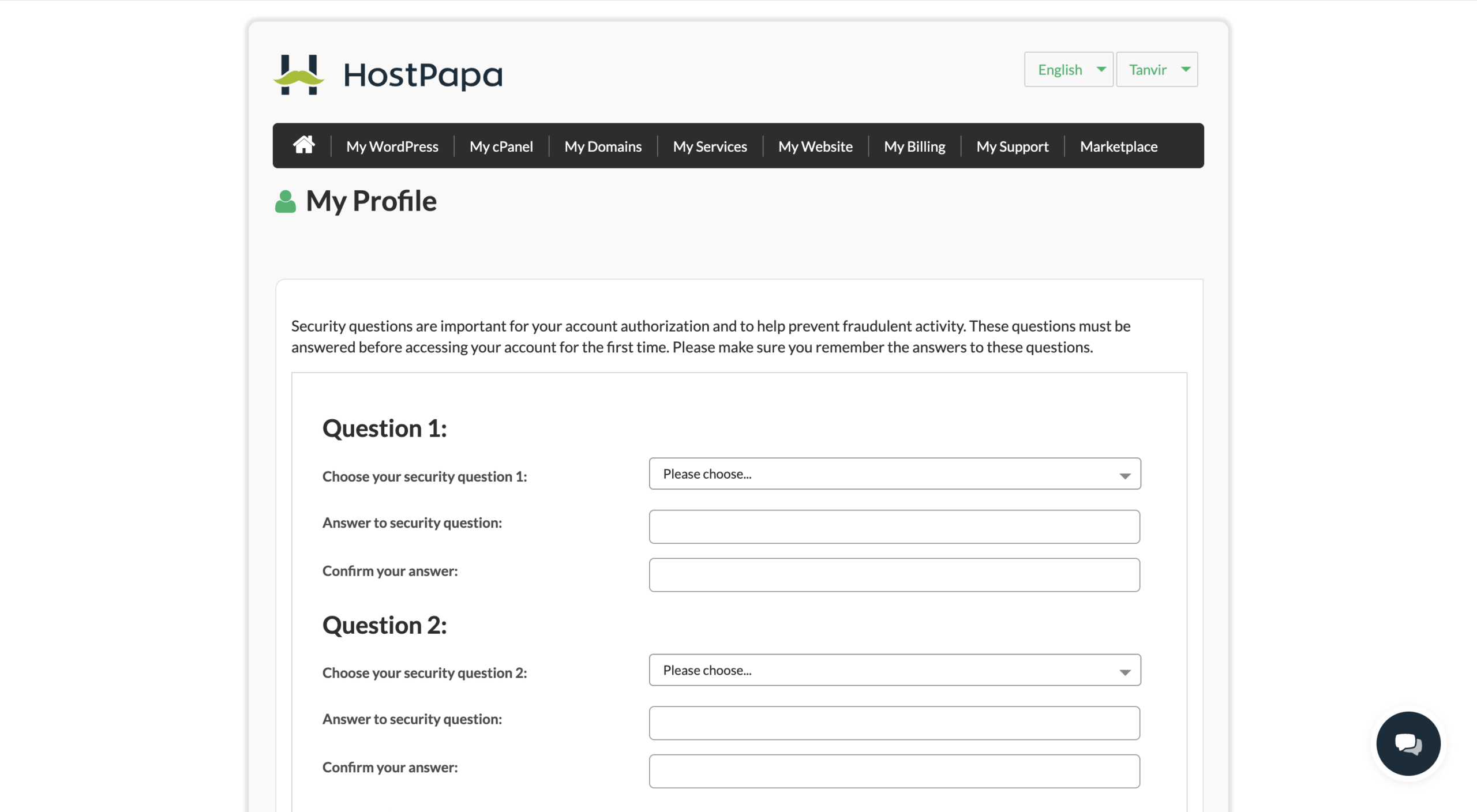
The HostPapa dashboard is your central control panel for managing every part of your hosting account. From one place, you can access cPanel, manage domains and hosting services, pay invoices, contact support, and explore additional tools through the Marketplace. Its simple layout makes it easy for both beginners and experienced users to keep their websites running smoothly.
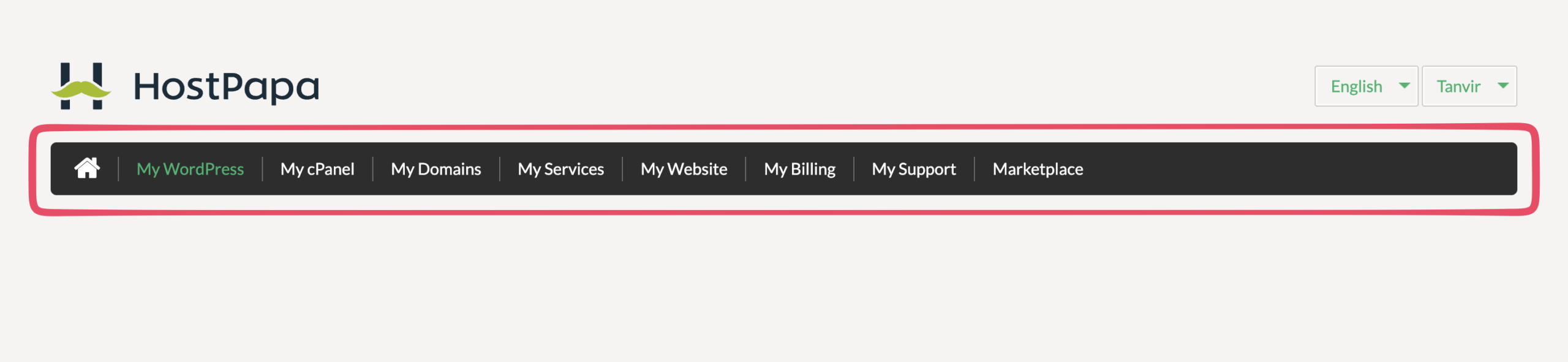
Here are concise one-line descriptions for each menu item:
- My WordPress — Access and manage your WordPress sites, updates, backups, and site tools from one place.
- My cPanel — Manage your hosting, files, databases, email, and FTP.
- My Domains — Register, transfer, and manage your domain names.
- My Services — View and manage all your hosting services.
- My Website — Build, launch, and manage your website.
- My Billing — Pay invoices and manage payment methods.
- My Support — Access tickets, help articles, and customer support.
- Marketplace — Explore and purchase additional hosting services.
Step 3: Add Your Domain
The next step is to add a domain. You can do this in later steps as well.
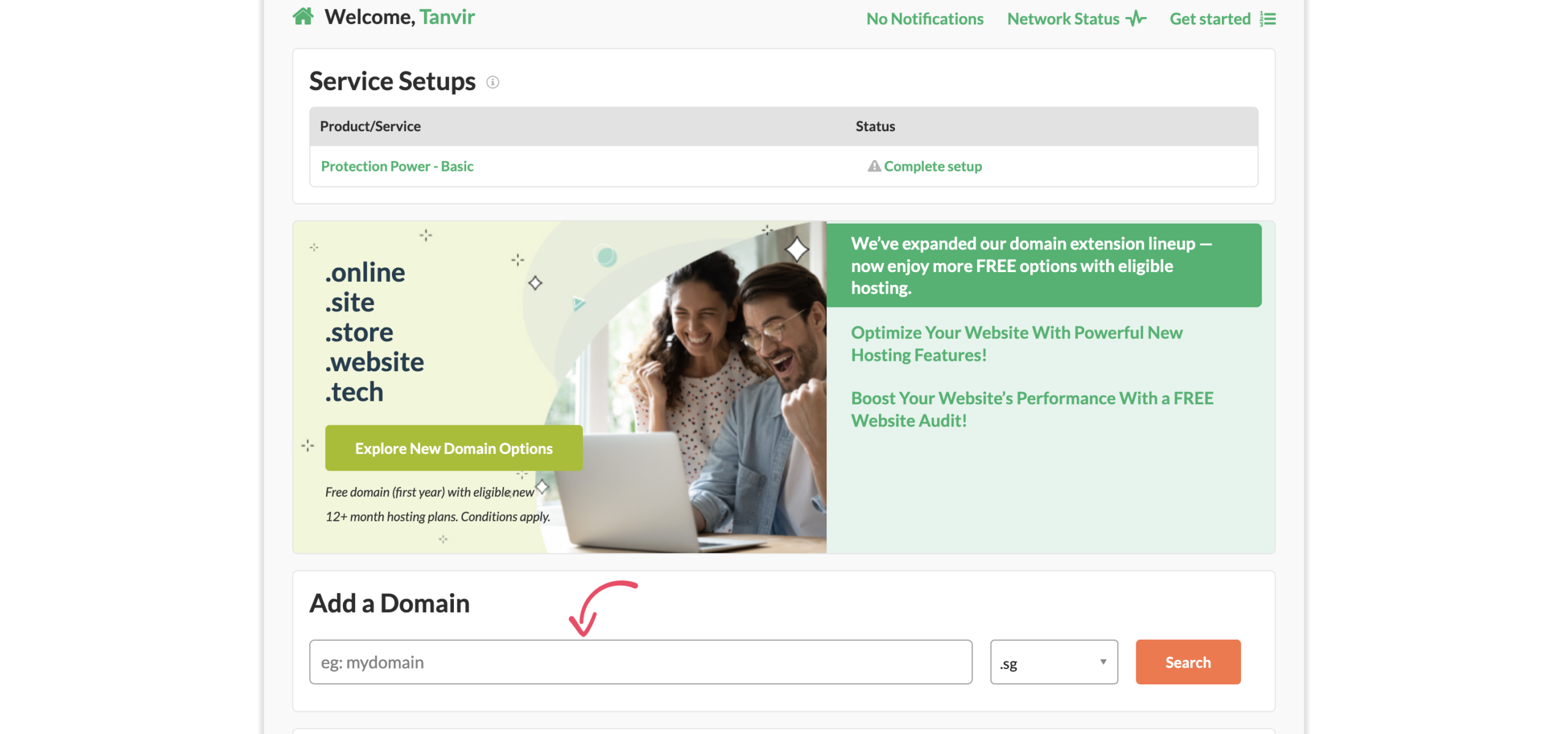
Go to My WordPress from the top navigation bar and click Add site.
Enter your domain name, select your preferred data center, and confirm the setup. HostPapa will provision your website and add the domain to its system. This usually takes just a few seconds.
Step 4: Create a Staging Website
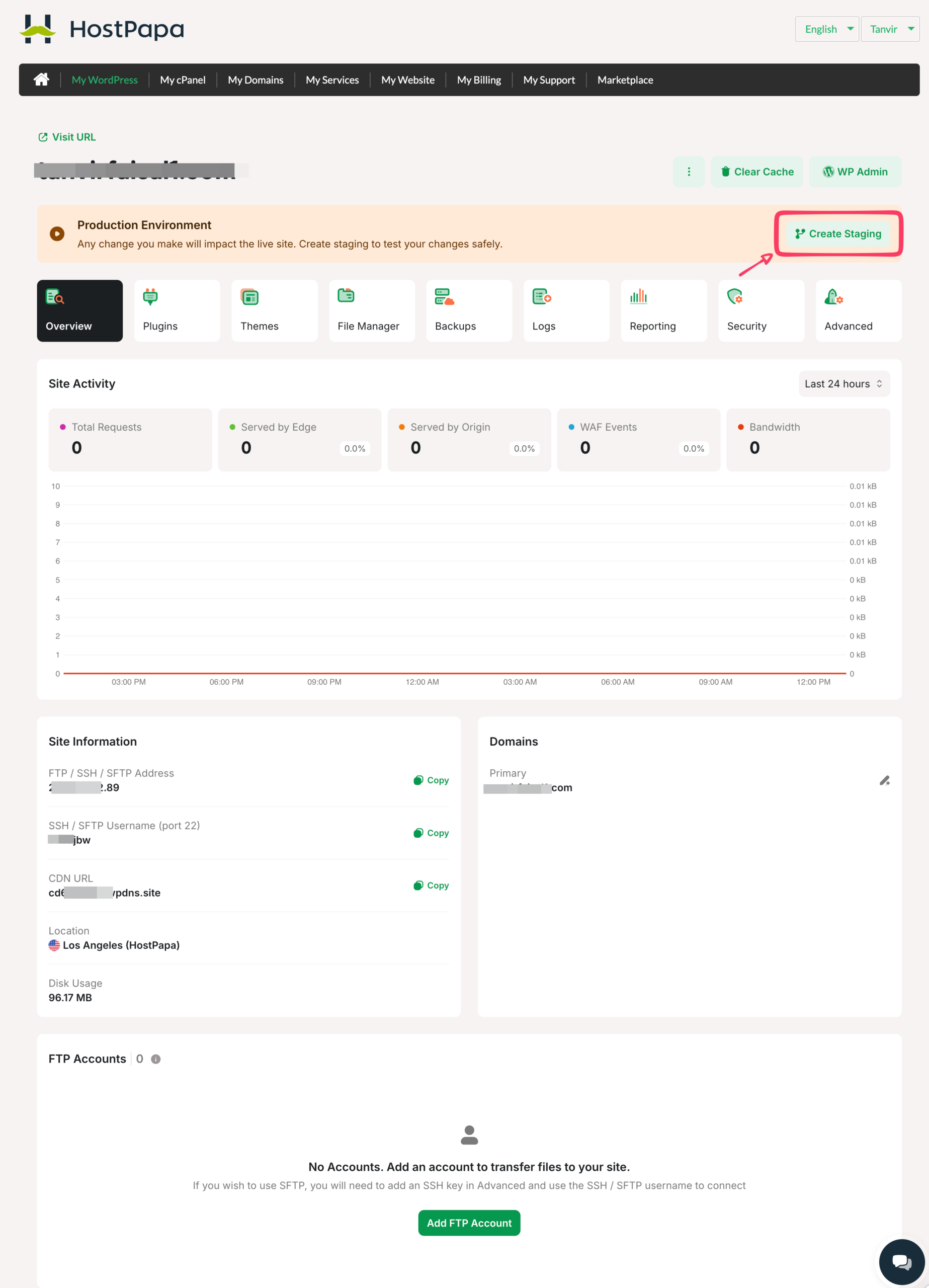
Open My WordPress from the dashboard. Select the WordPress site you want to test. Click the Create Staging button in the top-right corner. Wait for HostPapa to create a copy of your live website. Test updates, plugins, themes, or code changes safely on the staging site.
Once you’re satisfied, push the changes to your live website if needed.
Step 5: Explore Your HostPapa Dashboard
The My WordPress dashboard groups all essential website management tools into easy-to-access tabs. Instead of jumping between different panels, you can manage every aspect of your hosting from a single interface.
- Overview – View your site’s status, resource usage, and recent activity at a glance.
- Plugins – Install, update, or manage Plugins for WordPress.
- Themes – Browse, install, activate, and manage WordPress themes.
- File Manager – Access your website files directly from the browser without using FTP.
- Backups – Create, restore, or download backups to protect your website.
- Logs – Monitor server and application logs for troubleshooting.
- Reporting – Review performance metrics, resource usage, and website insights, and more
This tab-based layout keeps important tools organized, making it easy for both beginners and experienced users to manage their websites efficiently.
Step 6: Install WordPress via cPanel
Navigate to My cPanel (or the WordPress management section) and launch the one-click WordPress installer.
Scroll down to the Software section of the cPanel and click on “WordPress Manager by Softaculous
Select your domain, enter your site details, and start the installation.
Within a minute or two, WordPress will be ready to use.
Step 6: Secure and Optimize Your Site
Before launching your website, complete a few basic tasks:
- Enable the free SSL certificate.
- Set up automatic backups.
- Update WordPress, themes, and plugins.
- Install a caching plugin to improve performance.
Step 7: Launch Your Website
Once your content is ready, connect your domain (if needed), test your website on desktop and mobile, and publish it. Overall, HostPapa makes the WordPress setup process simple enough for beginners while providing the tools experienced users expect.
What HostPapa Hosting Could Do Better
- Renewal pricing is substantially higher than the intro rate. Confirm the real cost before buying
- Backups and malware removal are locked to higher tiers, not the entry plan
- Speed fluctuates with shared-server load, as expected for this hosting type
- Fewer global data centres than competitors like SiteGround
- VPS plans are priced higher than some comparable competitor offerings
HostPapa vs. The Competition
| Feature | HostPapa | Hostinger | SiteGround |
|---|---|---|---|
| Starting Price | ~$2.95/mo | ~$2.99/mo | ~$3.99/mo |
| Uptime (tested/reported) | 99.94% | 99.9%+ | 99.99% |
| Support | Strong | Good | Strong |
| Beginner-Friendly | Very | Good | Good |
| Global CDN | Limited | Yes | Yes |
| Green Hosting | Yes (offset) | No | Yes |
Note: Hostinger and SiteGround figures are based on publicly reported data, not the same direct testing applied to HostPapa in this review, and should be treated as directional rather than a like-for-like comparison.
Take: If price is your top priority, HostPapa undercuts both Hostinger and SiteGround. If global performance and data-centre spread matter more, SiteGround edges ahead. If support quality and beginner hand-holding are what you value most, HostPapa earned that reputation in direct testing.
Final Verdict
HostPapa Rating: 4.1 / 5
HostPapa isn’t trying to be the fastest, cheapest, or most feature-packed host out there, and it doesn’t need to be. What it delivers well is support and approachability for small business owners and beginners.
Performance was reliable, security was solid with some features gated to higher tiers, and customer support was genuinely strong both in my direct tests and in the broader pattern of public reviews. The one-on-one onboarding session is a real, tangible differentiator at this price point.
The caveats are real: watch the renewal pricing, don’t expect top-tier shared-hosting speed, and know that some “included” features really mean “included on higher plans.”
Bottom line: If you’re a small business owner, blogger, or beginner launching your first website and you value human support over raw performance, HostPapa held up well under hands-on testing. Just go in with clear eyes on long-term cost.
Frequently Asked Questions
Is HostPapa reliable? In our 30-day test, yes, 99.94% uptime, consistent with its advertised guarantee and with longer-term third-party tracking.
Is HostPapa good for beginners? Yes. The free onboarding session, cPanel interface, one-click WordPress install, and responsive human support made it easy to set up a basic site with no prior experience in our test.
Does HostPapa offer a free domain? Yes, included for the first year on most hosting plans.
Does HostPapa offer a money-back guarantee? Yes, 30 days, no questions asked.
Is HostPapa good for WordPress? Yes. WordPress-optimised plans include one-click installation and automatic updates; performance is adequate for small-to-medium WordPress sites, not built for high-traffic ones.
What are HostPapa’s data centre locations? The USA, Canada, and the Netherlands are best suited for audiences in North America and Europe; users targeting Asia-Pacific audiences may see higher latency.




 Email Subscription Request


Add your first comment to this post