


 0
0 Selling a service runs into one common problem: people want a price before they talk. They need to know if your offer fits their budget. When pricing is unclear, visitors often leave without contacting you.
You lose time replying to the same questions. You lose leads when visitors feel unsure.
A cost calculator solves this pain point. Visitors choose what they need, enter a few details, and see an instant, upfront price. This process feels fair and clear, making trust easier and growing leads faster.
One WordPress plugin promises to make this simple: Cost Calculator Builder.
- Does it deliver?
- Is it beginner-friendly?
- Can it replace slow manual quotes?
This review walks through every part of the plugin, from setup to features, design, and pricing. By the end, you’ll know if it’s the right choice for your business.
Quick Navigation
What Is Cost Calculator Builder?
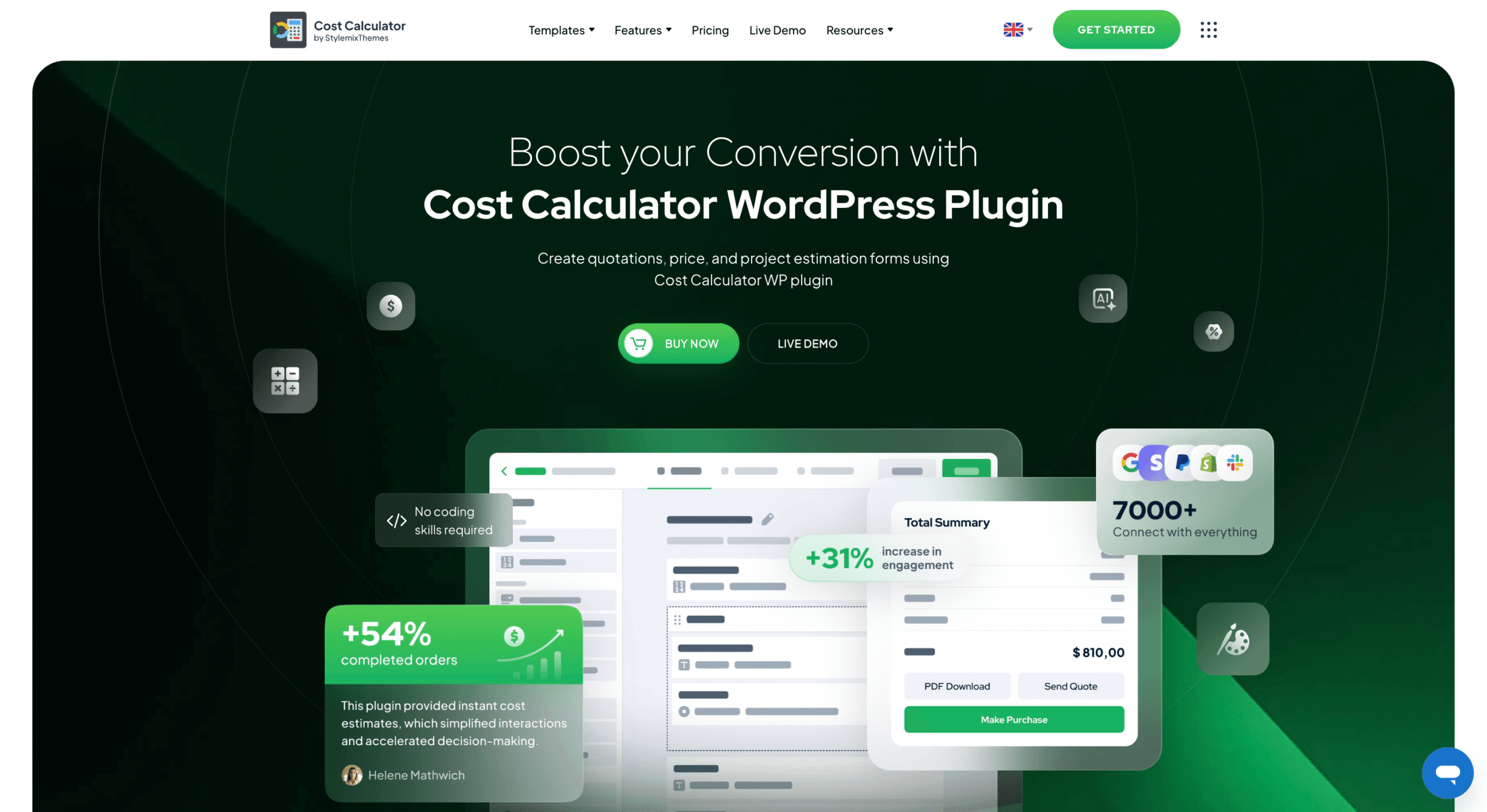
Cost Calculator Builder is a WordPress plugin that creates interactive price calculators. It works for any business that uses custom pricing.
After installation, a new menu called Cost Calculator appears in the WordPress dashboard. All settings, templates, and calculators live inside this area.
Common Use Cases:
- Service quotes (e.g., cleaning, repairs)
- Product configuration (e.g., custom furniture)
- Custom project pricing (e.g., web design)
- Booking cost estimates
- Subscription previews or donation calculators
A calculator turns guesswork into clarity. It helps visitors understand exactly what they will pay before they contact you.
Who Needs a Cost Calculator WordPress Plugin?
If you are unsure if this tool is for you, check these common scenarios:
You Need a Calculator If:
- Your pricing changes based on quantity, time, service type, or features.
- Clients constantly ask for custom quotes.
- You want more qualified leads.
- Your contact form is filled with vague questions.
- Visitors browse, get confused by pricing, and leave.
You Benefit Even More If:
- You offer services (coaching, consulting, repairs, design).
- You sell custom products (printing, graphics, packaging).
- You want to accept deposits or full payments online.
- You run an agency and need faster lead filtering.
When visitors see a confirmed price, they feel safe contacting you. You start conversations with people who already know the cost.
Check how the Cost Calculator plugin performs against the blind test conducted by WP Hive.
Key Features of the Cost Calculator Builder Plugin
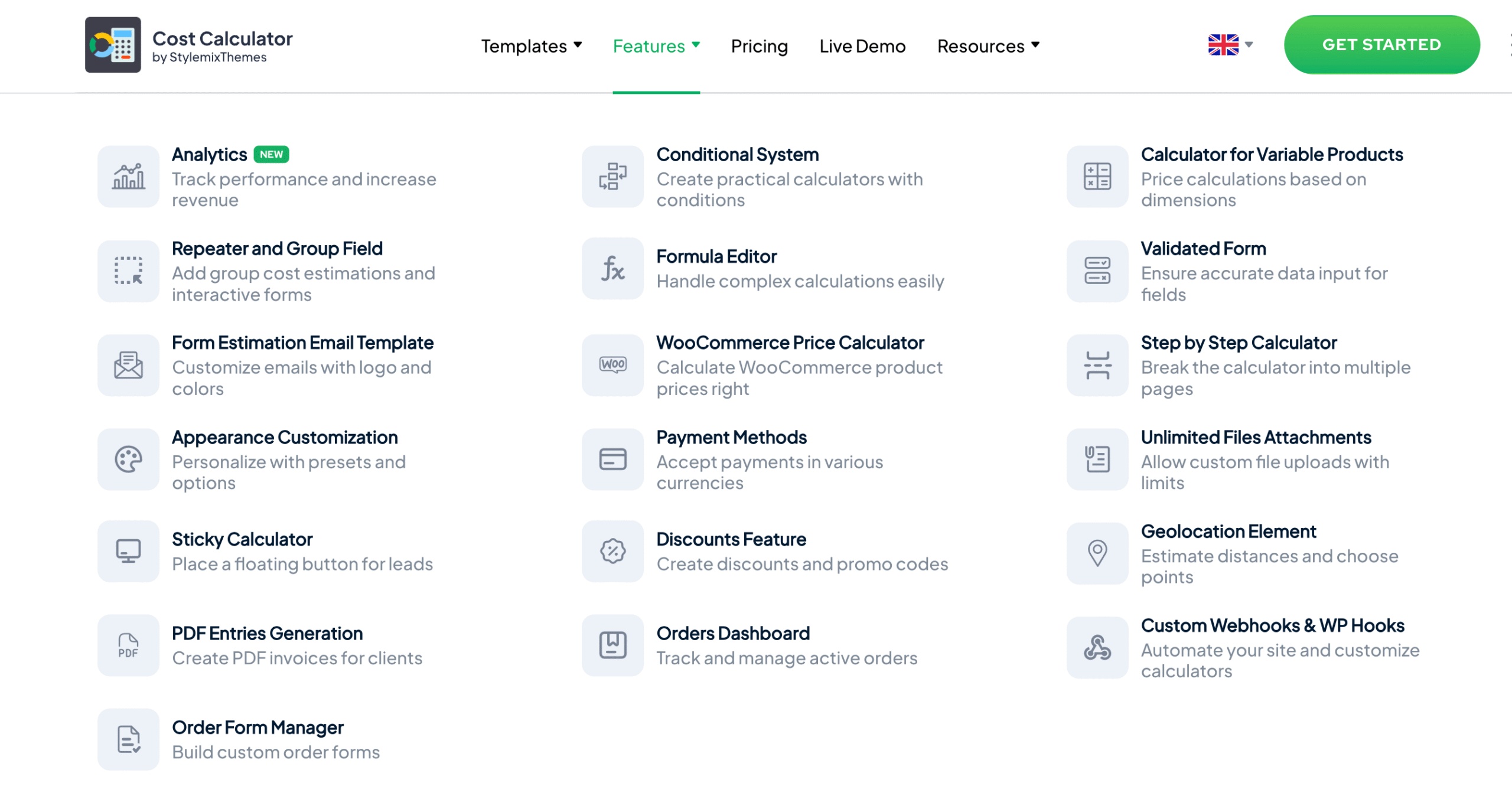
The plugin comes in two versions: Cost Calculator Free and Pro. The free version is powerful and can publish a working calculator instantly. The Pro plan unlocks advanced features like conditional logic, payments, and automation.
1. Drag-and-Drop Builder
The builder is simple to learn. You can click to add fields or drag them directly into the form. All field settings (labels, styles, prices) appear clearly on the right. There are no tricky controls and no coding skills needed.
2. Template Library
Templates save significant time. You can load a professional template, change the text, adjust prices, and publish quickly.
3. Practical Field Types
The plugin provides the essential fields for real calculations:
- Text inputs
- Quantity fields
- Radio buttons, Checkboxes, and Dropdown menus
- Sliders and Date pickers
- Total fields, Headings, and Descriptions
4. Formula Builder
The Cost Calculator plugin uses a list of operators and methods to provide a comprehensive toolkit for building powerful formulas and controlling program logic. They are the fundamental building blocks that perform everything from simple calculations to complex, conditional decision-making.
Here are the available operators and methods in Cost Calculator:
- Basic Arithmetic Operators (e.g., $+$, $-$, $*$, $/$, $\%$)
- Mathematical Methods (e.g., $\text{round}(x)$, $\text{pow}(x, y)$, $\text{sqrt}(x)$, $\text{abs}(x)$, $\text{ceil}(x)$, $\text{floor}(x)$)
- Conditional Operators ($\text{IF}$, $\text{IF ELSE}$)
- Logical Operators ($\text{AND}$, $\text{OR}$, $<$, $>$, $!=$, $==$)
5. Live Preview
You don’t need to publish to test. A Preview button opens a live calculator on a separate page. You can test the logic, run numbers, and check the layout before it goes public.
6. Works With Major Page Builders
Publish your calculator easily using:
- Shortcodes (universal)
- Elementor widgets
- Gutenberg blocks
- WPBakery modules
Pro Features Unlock Advanced Automation
The following features are available only in the Pro version:
7. Conditional Logic (Pro)
Conditional logic keeps forms clean by showing fields only when they are relevant.
- Example: If a visitor chooses “Home Cleaning,” then show the room selector field.
- Smart forms feel simple, and simple forms convert better.
8. Accept Payments (Pro)
Pro users can collect deposits or full payments directly. This is ideal for booking fees, coaching, or custom products.
- Supported methods: Stripe, PayPal, Razorpay, Cash payments, and WooCommerce checkout.
9. Import and Export
This feature is a favorite for developers and agencies. You can export a calculator from one WordPress site and import it to another, saving hours of rebuilding time.
10. Order Analytics
You get a clear picture of how people use your calculator. You see submissions, revenue, payment status, and even drop-off points. This helps you understand what works and what slows users down. You also view everything through simple widgets and charts, so you read your data without confusion. It feels like having a control room for your calculator.
11. Orders Dashboard
You manage every order from one place. You check payments, track customers, filter entries, and keep an eye on your service flow. This dashboard saves you from digging through multiple pages. You also view or download invoices, so your clients get transparent cost breakdowns. It keeps your workflow neat and stress-free.
12. Custom Order Form
You build forms that match your exact needs. You choose the fields, set up custom steps, and create an order experience that fits your business. This helps you collect the right details from every customer. You also guide users smoothly from start to finish, so they feel confident placing an order.
13. PDF Generation
Your users can download a clean PDF summary after they submit a calculation or order. This gives them a record they can save or share. It also adds trust because clients love having something in their hands. You get to present costs and details in a polished, professional format every time.
14. Sticky Calculator
This feature keeps your calculator visible as people scroll. Your users don’t lose access even if they move around the page. A sticky calculator boosts engagement because it stays right there when someone is ready to take action. It feels like a smart assistant following the user without getting in the way.
15. Discounts
You create custom discount rules to encourage more conversions. You set percentage cuts, fixed rates, seasonal deals, or special incentives for bulk orders. This helps you run promotions without rewriting your calculator. It’s a simple way to boost sales and reward your customers at just the right moments.
16. WooCommerce Integration
You connect your calculator with WooCommerce products in a few clicks. This turns your pricing tool into a full buying experience. Users calculate a price and add the result straight to their cart. You create dynamic pricing scenarios, offer instant quotes, and make your store feel more interactive.
17. Formula Editor
You build smart pricing rules with a flexible formula editor. You create simple or advanced formulas based on your industry needs. This gives you full control over how your calculator behaves. You also predict costs more accurately because you’re not limited to basic math. It’s perfect for businesses with custom pricing structures.
Hands-On Experience of Using the Cost Calculator Plugin
The plugin installs like any other. You need to install the free version from the WordPress dashboard. Go to the plugin repository and search for ‘Cost Calculator Builder’. You will find the plugin at the top of the search results.
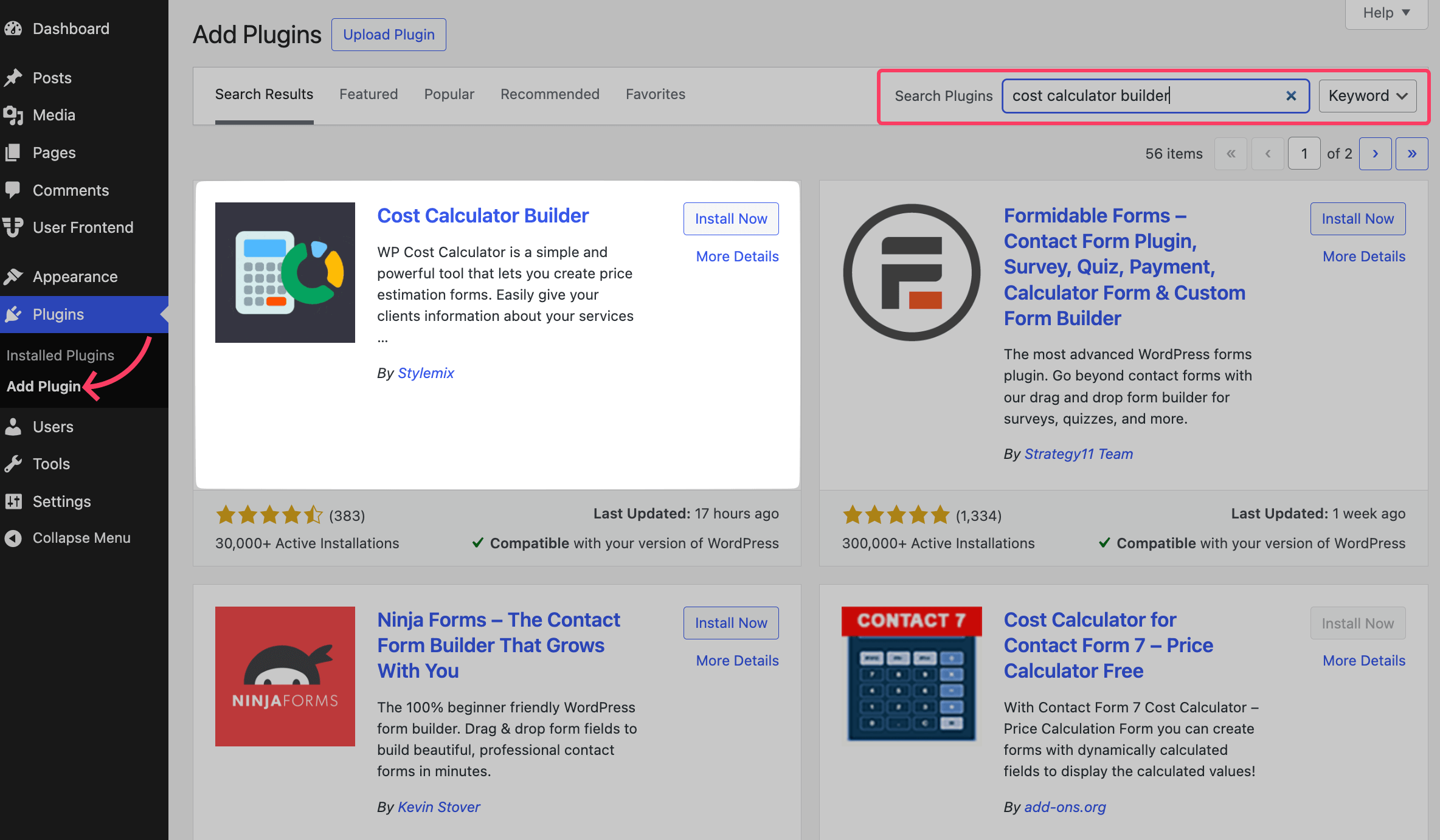
Install and activate the plugin. If you have the Pro version, download it from your account and use the license key to activate it. The onboarding is so intuitive, with a neat and clean UI, and every tab is easy to understand, even for beginners.
Step 1: Explore the Tool Before Creating Your First Cost Calculator
Upon successful activation, you’ll see the Cost Calculator menu on the left side panel of your WordPress dashboard. Click on it to open the Calculators sub-menu.
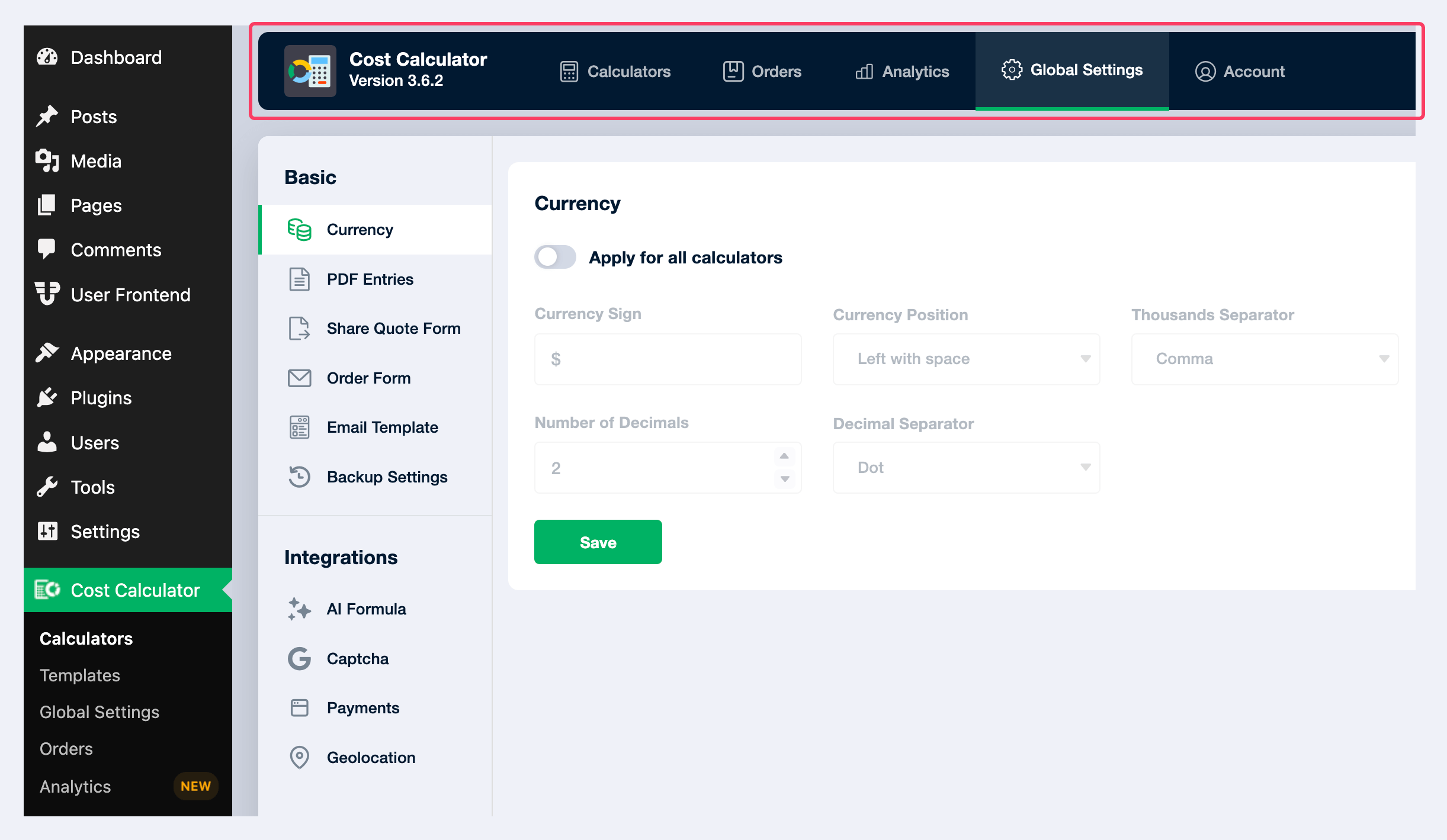
Here, the top bar has all the required settings tabs for your convenience. You’ll also get some of these settings submenus on the left side panel. As you can see, the Global Settings tab has important configuration options related to:
- Currencies
- PDF entries
- Email templates
- AI Integrations
- Payment settings and more.
Explore these options to learn what you can do with the Cost Calculator plugin for WordPress.
Step 2: Build a Cost Calculator for Your Needs
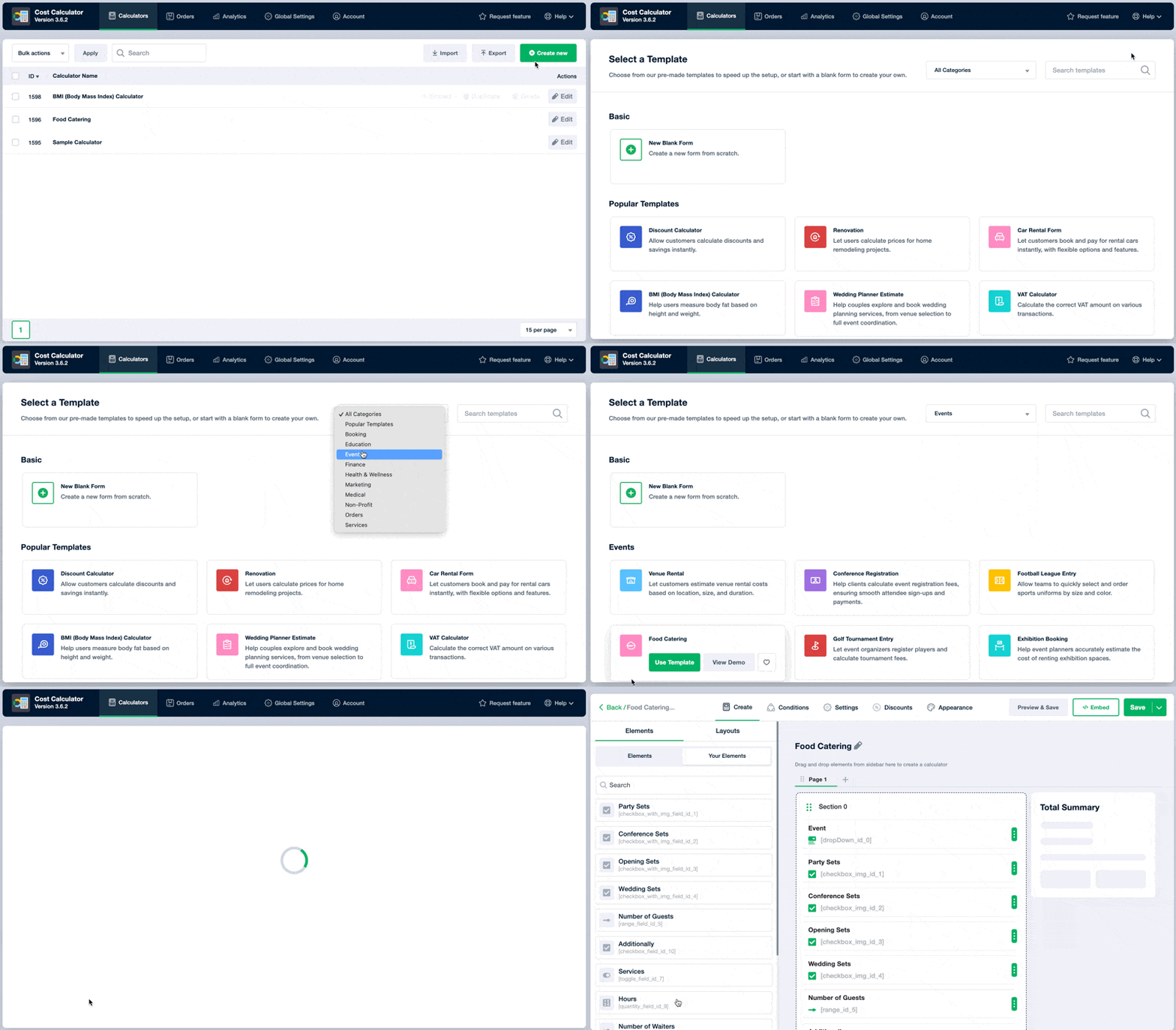
Go to Cost Calculator > Calculators, and you’ll get the calculator creation wizard. Click the ‘+Create new’ button to initiate the process. You can start from scratch by choosing the ‘New Blank Form‘. In our case, we chose a template (Food Catering) from the ‘Events‘ category.
Now, you’ll get a drag-and-drop calculator builder that has almost all the fields you might need when creating a price calculator. Drag an element from the left and drop it on the right as we’ve shown here for the ‘File Upload‘ field.
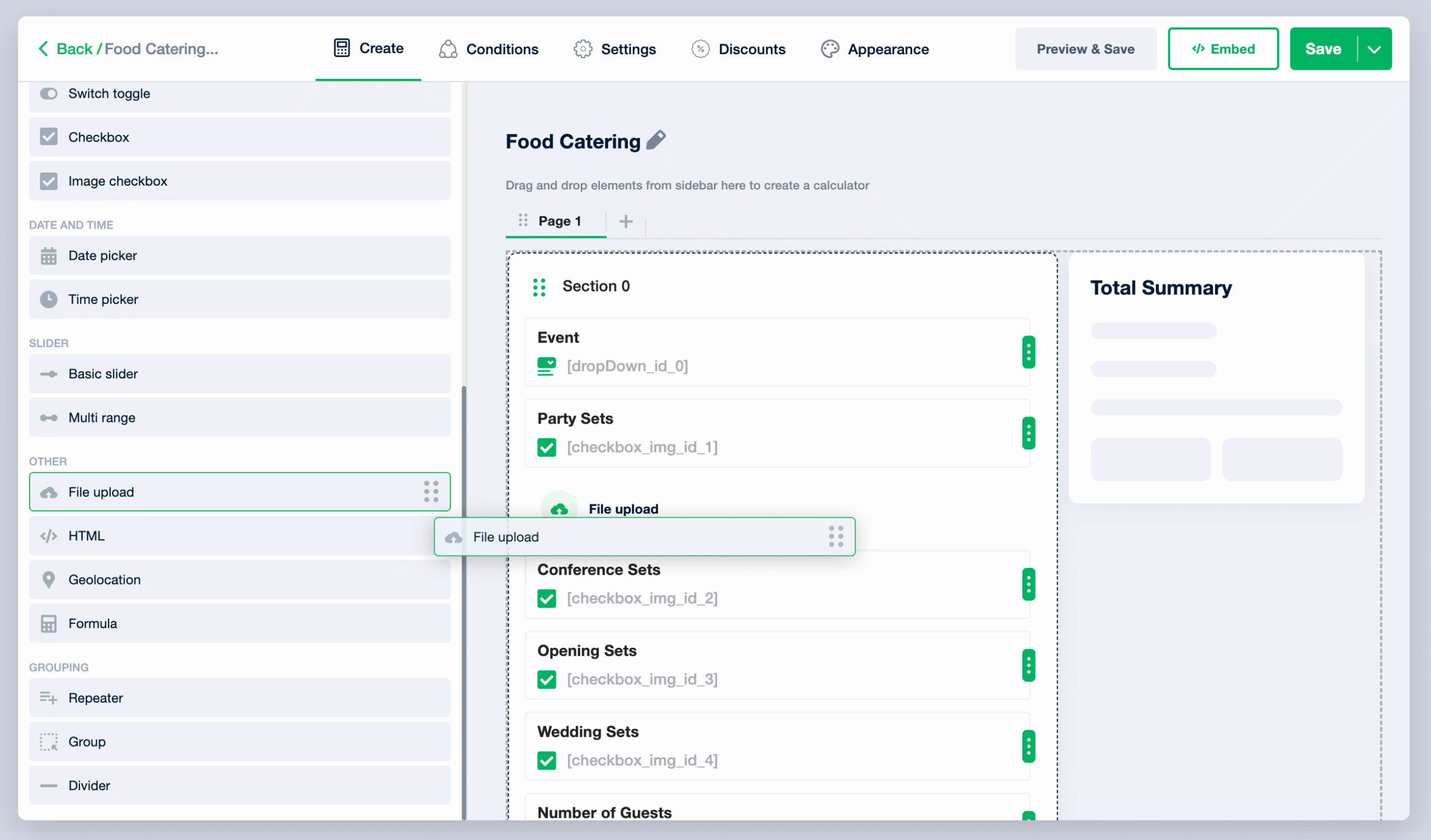
Thus, keep dropping your fields into the form builder and edit or customize your fields by clicking on the respective fields.
Step 3: Configure the Calculator for a Functional Workflow
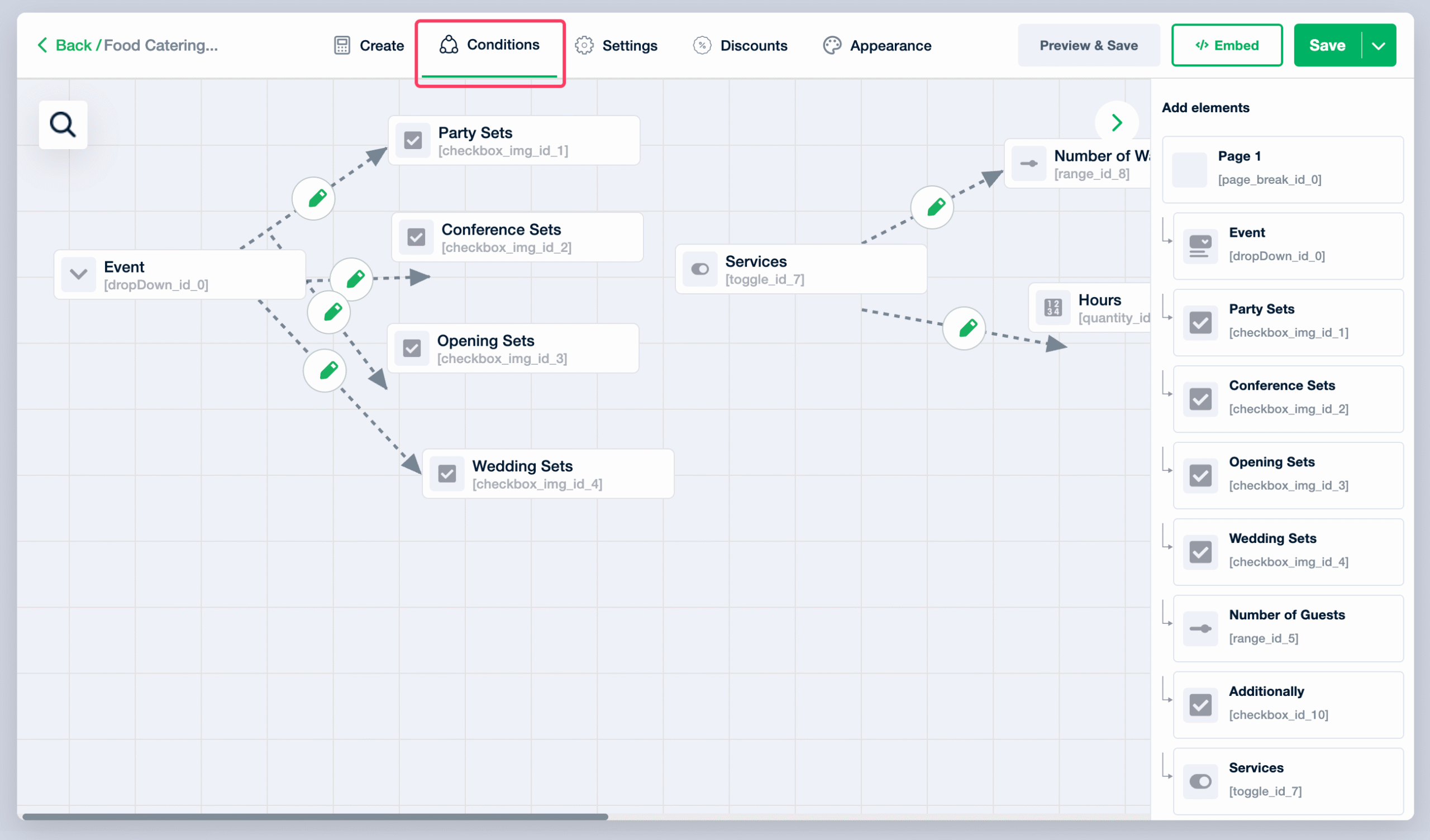
Setting field values is not enough. A real cost calculator needs smart conditions to keep the workflow clean. Conditions decide what happens next when someone selects a specific option. Without them, the calculator feels confusing and breaks the user flow.
You can configure your form conditions by using the Conditions settings tab.
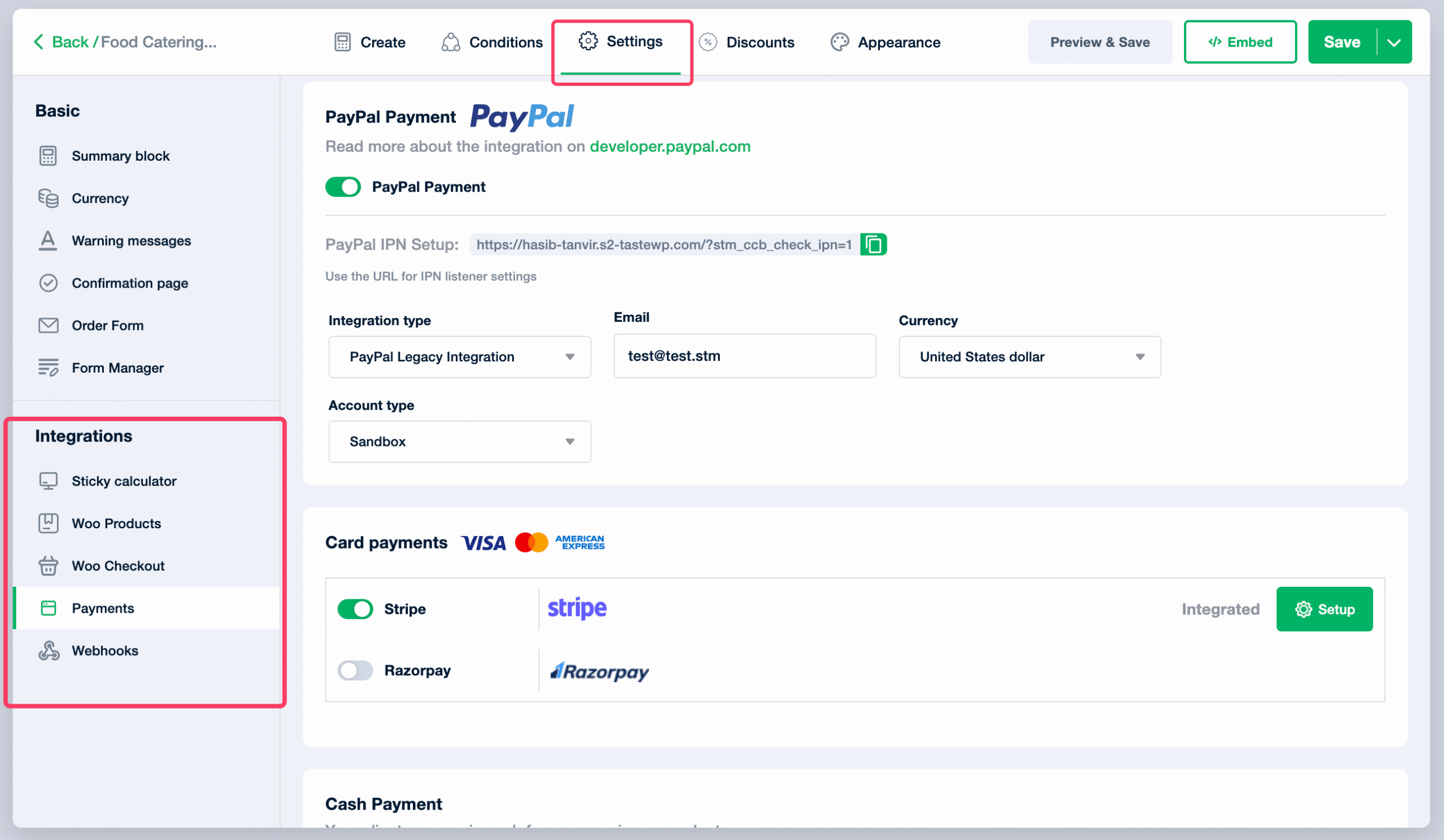
Another key part of your form is payment and integration setup. You can handle everything from the Settings tab on the form builder page.
The Cost Calculator plugin also lets you create discount coupons that apply to payments. After that, move to the Appearance tab. The plugin includes five premade themes. You can also customize colors, fonts, buttons, and spacing through the Custom option.
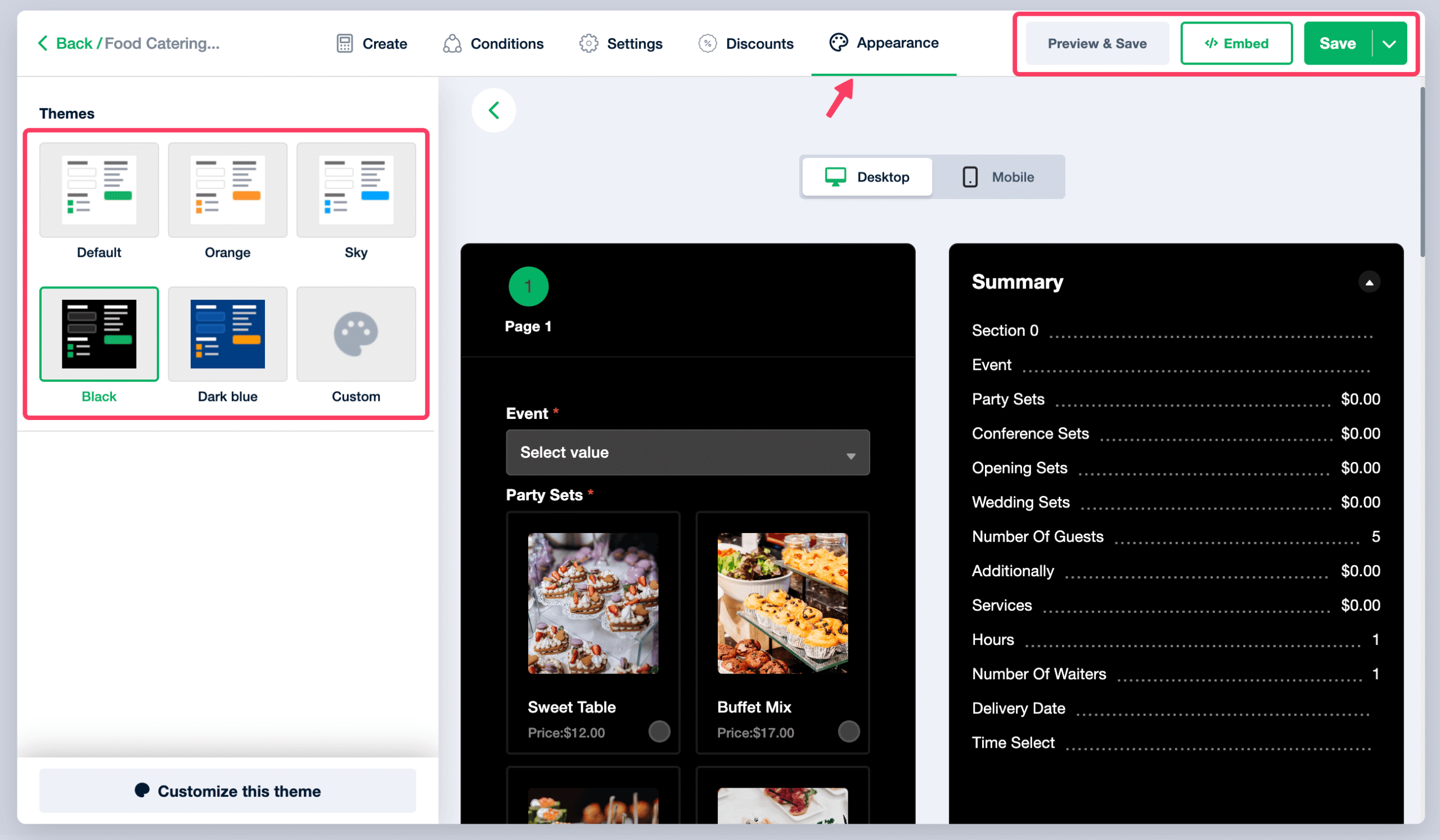
The front-end design is clean and modern and works smoothly on mobile devices. The Appearance panel controls colors, spacing, buttons, and fonts. No CSS is needed. A clean layout feels professional and increases visitor trust.
When everything looks good, save your changes and preview the calculator. Click the Preview & Save button to open it in a new tab.
Step 4: Check Your Calculator and Embed It
Test the calculator to see if pricing updates correctly. Add some options, toggle fields, and confirm that totals change in real time.
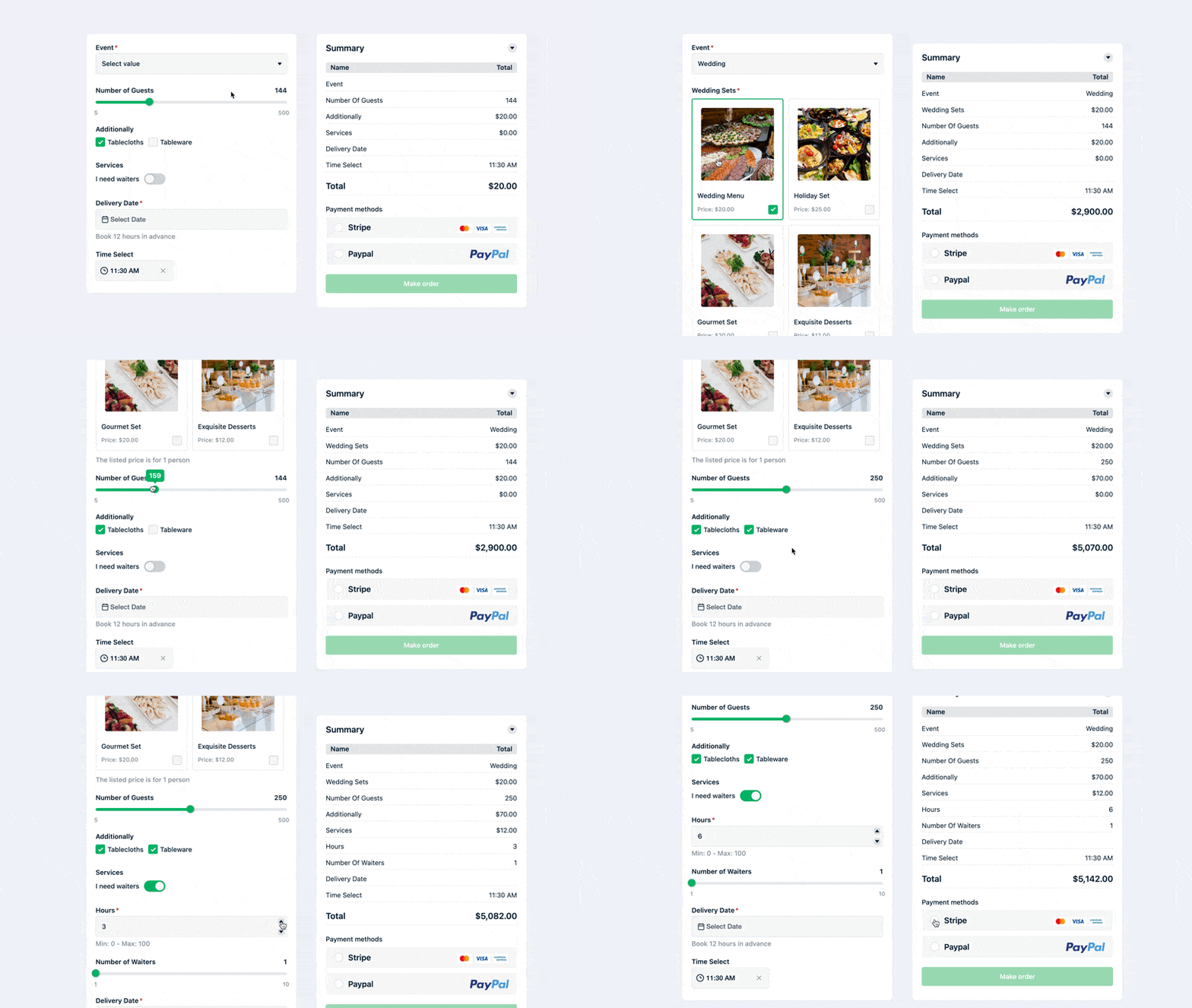
You will notice an Embed button in the top-right corner of the preview screen. The same button also appears on the form builder page. Click it and choose how you want to publish:
- Copy the shortcode and paste it anywhere
- Insert into an existing page from the dropdown
- Or create a new page with the calculator added automatically
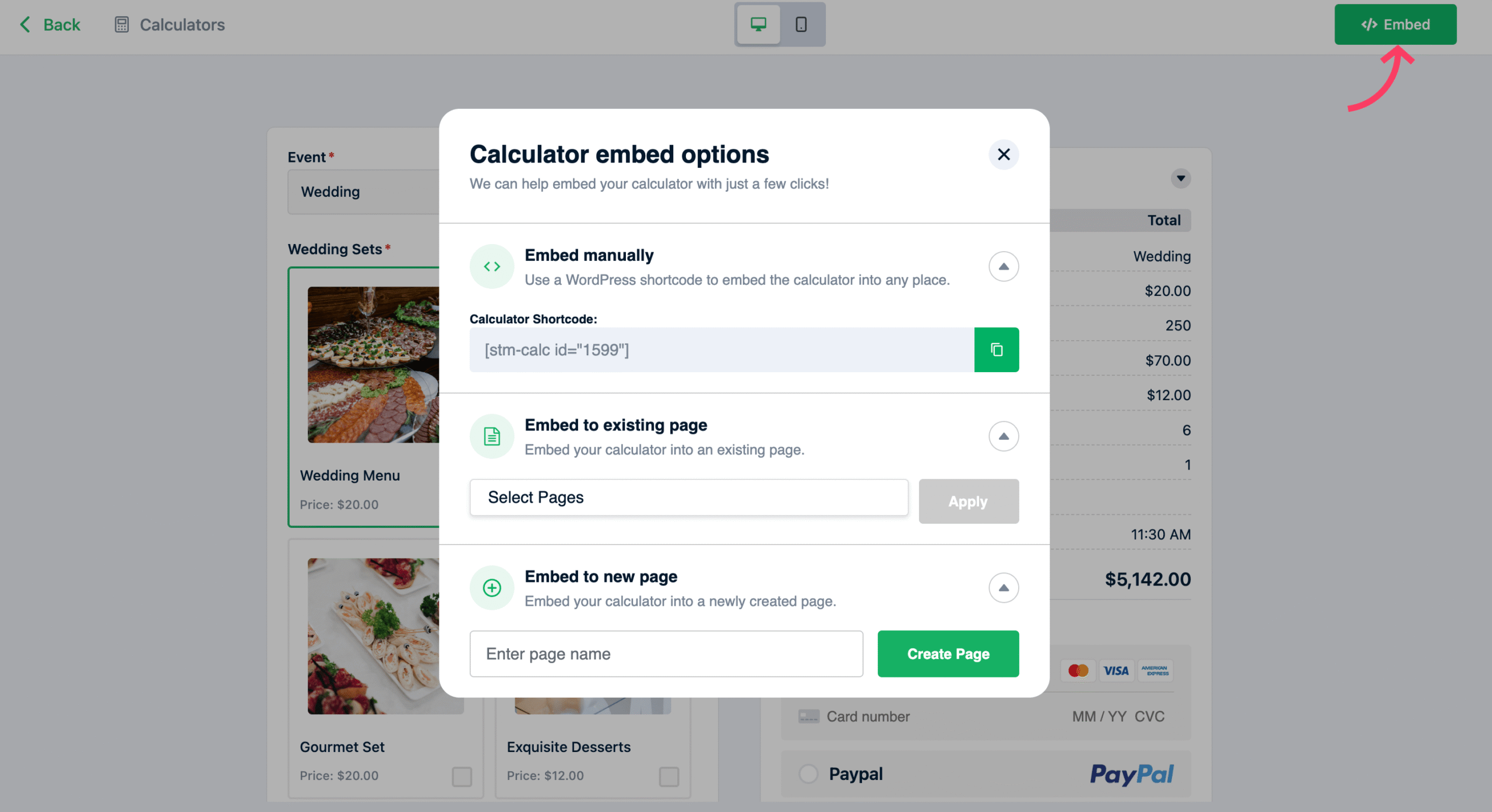
Once embedded, the cost calculator becomes live for your users. The plugin loads only on pages where the calculator exists, so the rest of your site stays fast. It is safe for performance-focused websites.
Step 4: Analyze the Performance Using the Default Analytics
This is the built-in analytics dashboard of the Cost Calculator Builder plugin. It shows how many people viewed or interacted with your calculator, and how many completed payments or orders.
- Revenue: total earnings from calculator payments
- Avg. per Order: average earnings per successful order
- Orders: total completed orders
- Avg. Orders/day: daily order average
- Views: how many times the calculator was seen
- Avg. Views/day: average calculator views per day
- Interactions: how many times visitors changed fields, clicked options, or tested pricing
- Avg. Interactions/day: average interactions per day
You can switch the date range (daily, weekly, monthly) and track which days bring the most activity. It is a simple way to see if your calculator is working, which services attract attention, and how many visitors convert into real customers.
Step 5: Accept Payments and Track Orders
If you want visitors to pay right after calculating the price, turn on the payment options. The Pro version supports Stripe, PayPal, Razorpay, cash payments, and WooCommerce checkout.
After a payment is completed, the order appears inside the Orders dashboard. You can view customer details, payment status, selected options, total price, and submitted information in one place. This saves time because you do not need to check emails or manage orders manually.
Cost Calculator Review: Pricing Breakdown
Cost Calculator Builder offers annual and lifetime plans, both including all Pro features.
| Plan Type | Starting Price (1 Website) | Benefit |
| Annual | $59 (regularly $89) | Includes one year of updates and support. |
| Lifetime | $149 (regularly $229) | Pay once and use forever, with no renewal fees. |
Agencies can buy higher-tier plans with more licenses. The one-site plan is usually enough for small business owners.
Cost Calculator Plugin Free vs. Pro: Quick Comparison
The free version is a solid starting point when you want something quick and simple. The Pro version takes things to a whole new level. The jump from Free to Pro feels big because Pro turns your calculator into a full quoting, ordering, and checkout system built for real businesses.
| Feature Category | Free | Pro |
|---|---|---|
| Core Calculator Builder | ✔ Basic | ✔ Advanced |
| Form Elements | ✔ Standard | ✔ All Premium + Image + File + Repeater |
| Layout & Styles | ✔ Basic | ✔ Full Customization + New Styles |
| Integrations | ✔ None | ✔ WooCommerce + Stripe + PayPal + CF7 |
| Payments | ✘ | ✔ All Gateways + Cash |
| Workflow Tools | ✔ Simple Estimation | ✔ Orders Dashboard + Custom Order Form |
| Automation | ✘ | ✔ Conditional Logic + Webhooks + AI Formulas |
| Export & Output | ✔ Import/Export | ✔ PDF Entries + PDF Customization |
| UX Enhancements | ✔ Instant Estimate | ✔ Sticky Calculator + Multi-step Forms |
| Security & Backups | ✔ | ✔ reCaptcha + Auto Backups |
Pros and Cons of the Cost Calculator for WordPress
| Pros ✅ | Cons ❌ |
| Simple for beginners | Complex formulas require careful planning |
| Clean, modern design | Payments are only available in Pro |
| Works with major page builders | Some advanced layouts take practice |
| Powerful Free version | |
| Pro adds payments and automation | |
| Fast and lightweight |
Even with minor points, the plugin scores high for ease of use and value.
Cost Calculator Builder vs Alternatives
How does it compare to other calculator plugins?
| Feature | Cost Calculator Builder | Calculated Fields Form | WP Cost Estimation |
|---|---|---|---|
| Beginner-Friendly | Yes | Medium learning curve | Medium |
| Drag-and-Drop Builder | Yes | Limited | Yes |
| Modern Design | Yes | Basic styling | Yes |
| Ready Templates | Yes | Few | Yes |
| Payments | Pro only | Requires add-ons | Yes |
| Page Builder Support | Yes | Partial | Yes |
| Best For | Service businesses | Tech-heavy users | Designers |
Why it wins: Most calculator plugins feel technical or have outdated designs. Cost Calculator Builder focuses on speed, simplicity, and modern UI.
Final Verdict
Should you try Cost Calculator Builder? Yes. At least install the free version and test it. Many site owners never return to manual quotes after trying it.
It Works Because:
- Clear pricing builds trust.
- Instant answers create more leads.
- Setup takes minutes; no developer needed.
- It has fast performance and a modern look.
- It works with all popular page builders.
For simple pricing, the free version is enough. For full automation, payments, and conditional logic, the Pro plan offers everything needed to run a complete pricing and order system. In short, it delivers what it promises.
If you are tired of answering repeat pricing questions or losing leads because pricing is unclear, a calculator changes everything.
Start with the free version of Cost Calculator Builder, build a simple pricing estimator, and test it on real visitors.
Most businesses see higher lead quality within days.
If you want payments, conditional logic, PDF entries, and full automation, upgrade to Pro and turn pricing into a complete ordering system.
In short, Cost Calculator Builder delivers exactly what it promises.
FAQs – Cost Calculator WordPress Plugin
What is Cost Calculator Builder used for?
It creates interactive pricing calculators in WordPress, helping visitors estimate cost and submit quotes faster.
Is Cost Calculator Builder free?
Yes. The free version supports full pricing calculators. Advanced features like payments and conditional logic require Pro.
Can you accept payments in the calculator?
Yes. Stripe, PayPal, Razorpay, and WooCommerce checkout are included in the Pro version.
Does it work with Elementor and Gutenberg?
Yes. It includes blocks and widgets for major builders, plus universal shortcodes.
Is it beginner-friendly?
Yes. You can build a working calculator in minutes using drag-and-drop fields and simple formulas.
Will it slow down my website?
No. It loads only on pages where the calculator is placed.
Can calculators be imported and exported?
Yes. You can move calculators between WordPress sites.






 Email Subscription Request


Add your first comment to this post